User Guide
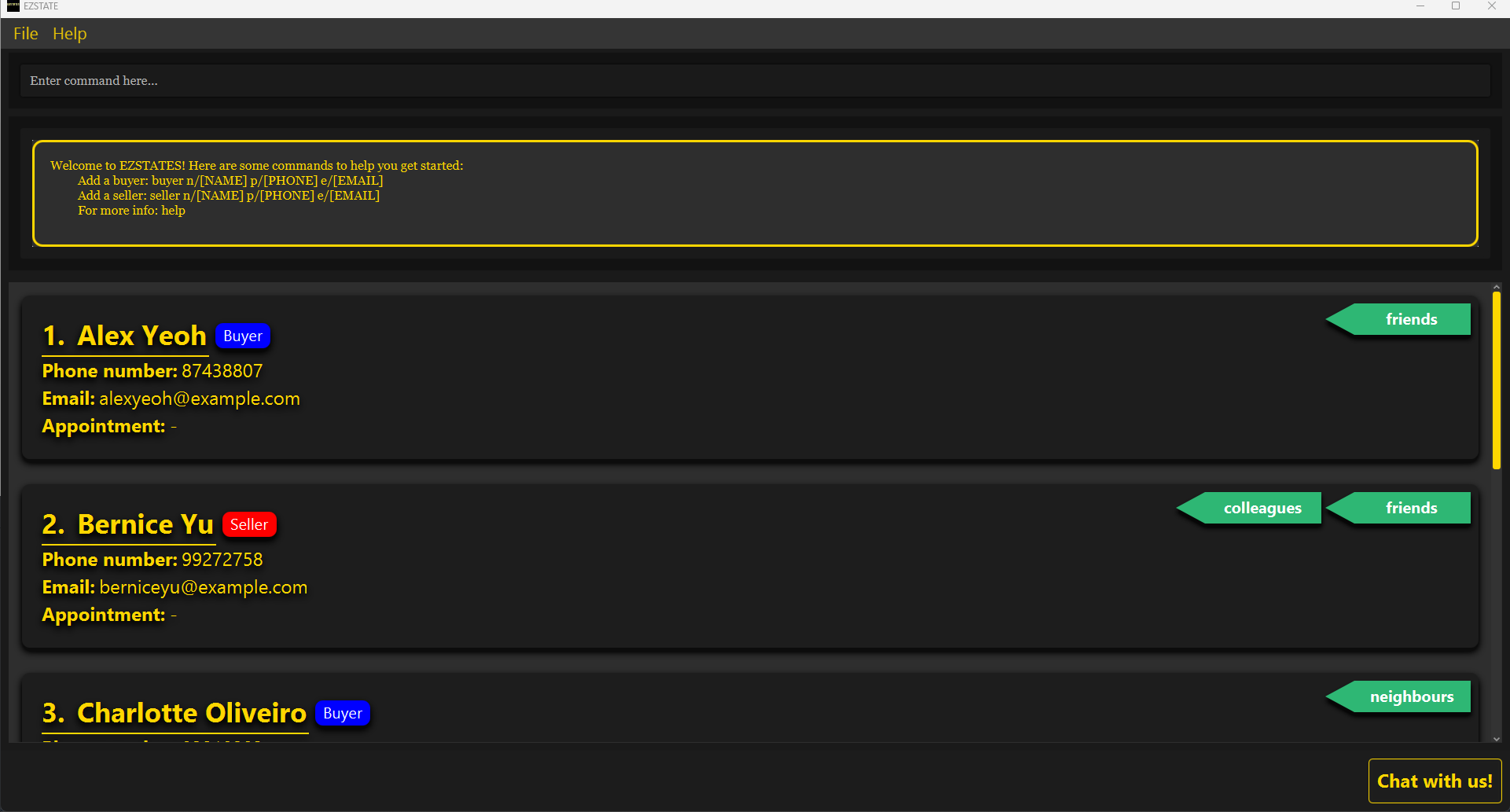
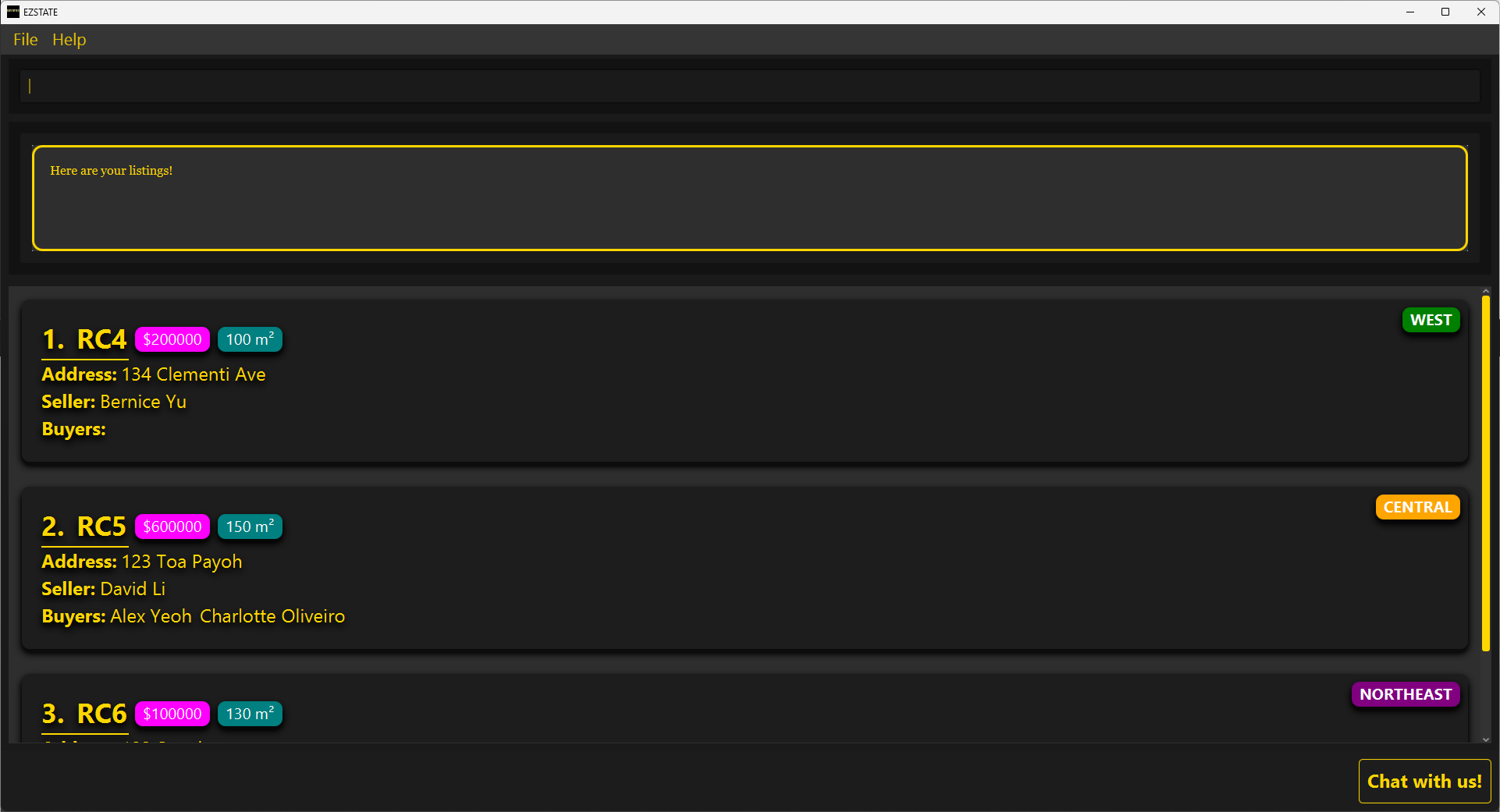
EZSTATES is a Command Line Interface (CLI) desktop app designed specifically for real estate agents who manage buyer and seller contacts (i.e. clients), listings, and appointments. Below is a sneak peek into our app:
Client management
Listing management
You could be part of the ideal target audience of EZSTATES if you meet the following criteria:
Job: Real Estate Agent focused on managing buyer and seller relationshipsTyping ability: Comfortable typing at speeds of ~80 WPM or higherWorkflow Preference: Prefers streamlined typing commands over navigating Graphic User Interface (GUI) buttonsTech Savviness: Confident using command-based applications and prefers minimal mouse useWork Style: Handles multiple clients and properties simultaneously and values efficiency in contact and property managementEnvironment: Works in a fast-paced setting where quick data entry and retrival are essential
But do not worry if you do not meet every criterion — EZSTATES is designed to be intuitive and efficient for all users. Give it a try, and head over to our Quick Start guide to get started and see how EZSTATES can make your contact and property management tasks faster and easier!
Table of Contents
- Table of Contents
Quick Start Guide
Welcome to EZSTATES! This guide will walk you through installing the app and getting started with basic commands.
Installation Steps
For Windows
- Open the Command Prompt:
- Press the Windows key, type
cmd, and select Command Prompt from the search results.
- Press the Windows key, type
- Check your Java version:
- In the Command Prompt window, type the following command:
java -version - Press Enter. If Java is installed, it will display the version. Ensure it is Java 17 or above.
If you needJava, you can download it from Java Downloads.
- In the Command Prompt window, type the following command:
-
Download the latest
.jarfile from EZSTATES Releases. -
Copy the file to the folder you want to use as the home folder for EZSTATES.
- Open a command terminal (repeat Step 1) and navigate to the folder with the
.jarfile by typing:cd path/to/your/folderAlternatively, you can open the folder where the.jarfile is located, right click on any space inside the folder and clickOpen in Terminal.Then inside terminal, run the app with:
java -jar EZSTATES.jarA GUI should appear in a few seconds as shown below. Note that the initial launch of the app will contain some sample data.
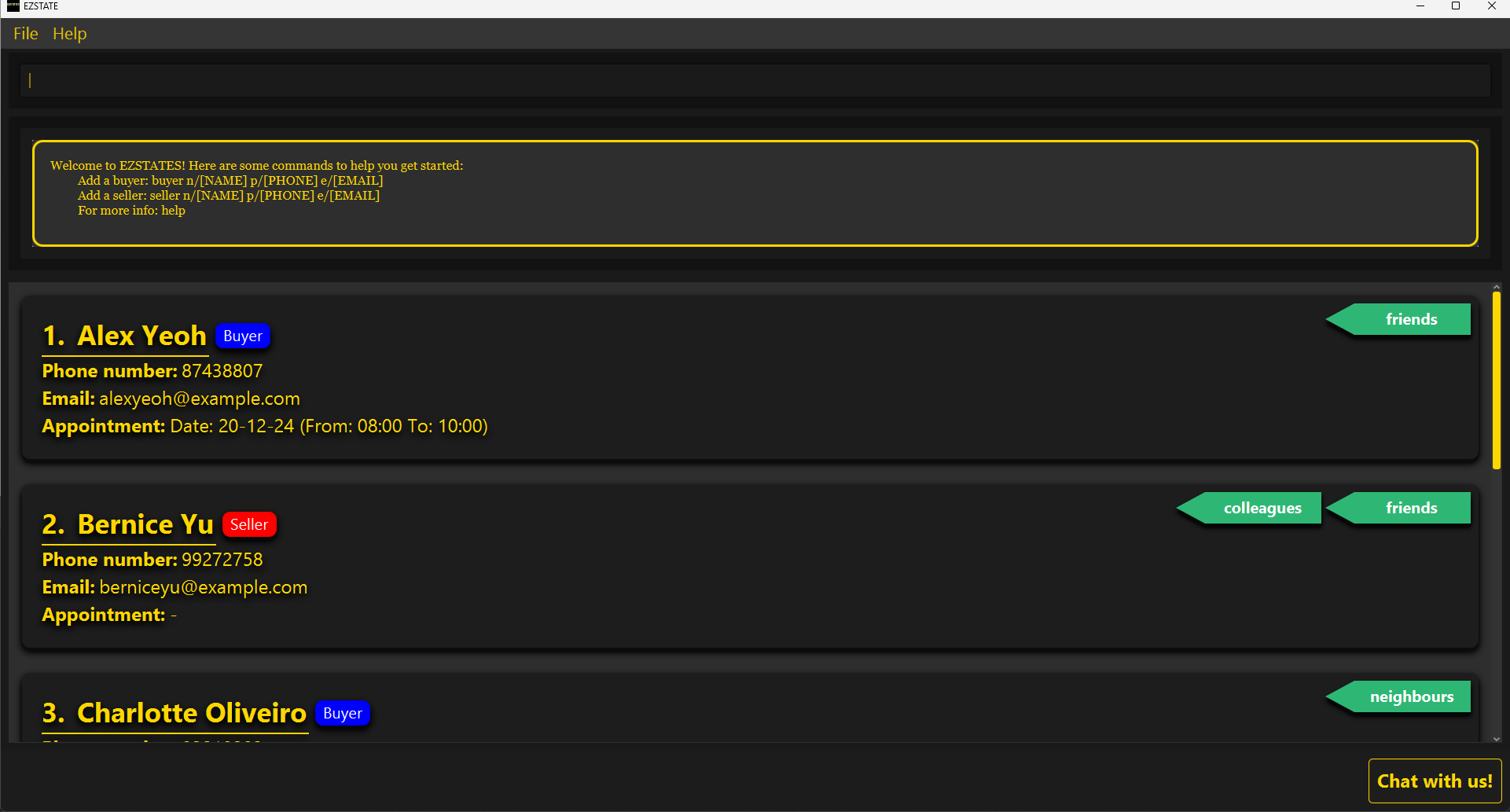
- Head over to the next section to understand the GUI. If you’re already familiar with it, feel free to skip ahead to Basic Commands.
For MacOS
- Open the Terminal:
- Open Spotlight by pressing Command + Space, type
Terminal, and press Enter. - Alternatively, you can go to Finder > Applications > Utilities, and double-click on Terminal.
- Open Spotlight by pressing Command + Space, type
- Check your Java version:
- In the Terminal window, type the following command:
java -version - Press Enter. The terminal will display the installed Java version. Ensure it is Java 17 or above.
If you needJava, you can download it from Java Downloads.
- In the Terminal window, type the following command:
-
Download the latest
.jarfile from EZSTATES Releases. -
Copy the file to the folder you want to use as the home folder for EZSTATES.
- Open Terminal (repeat Step 1) and navigate to the folder with the
.jarfile by typing:cd path/to/your/folderAlternatively, you can open the folder where the.jarfile is located, right click on any space inside the folder and clickNew Terminal at Folder.Then inside terminal, run the app with:
java -jar EZSTATES.jarA GUI should appear in a few seconds as shown below. Note that the initial launch of the app will contain some sample data.
- Head over to the next section to understand the GUI. If you’re already familiar with it, feel free to skip ahead to Basic Commands.
GUI Overview
The EZSTATES GUI is organized into five key components:
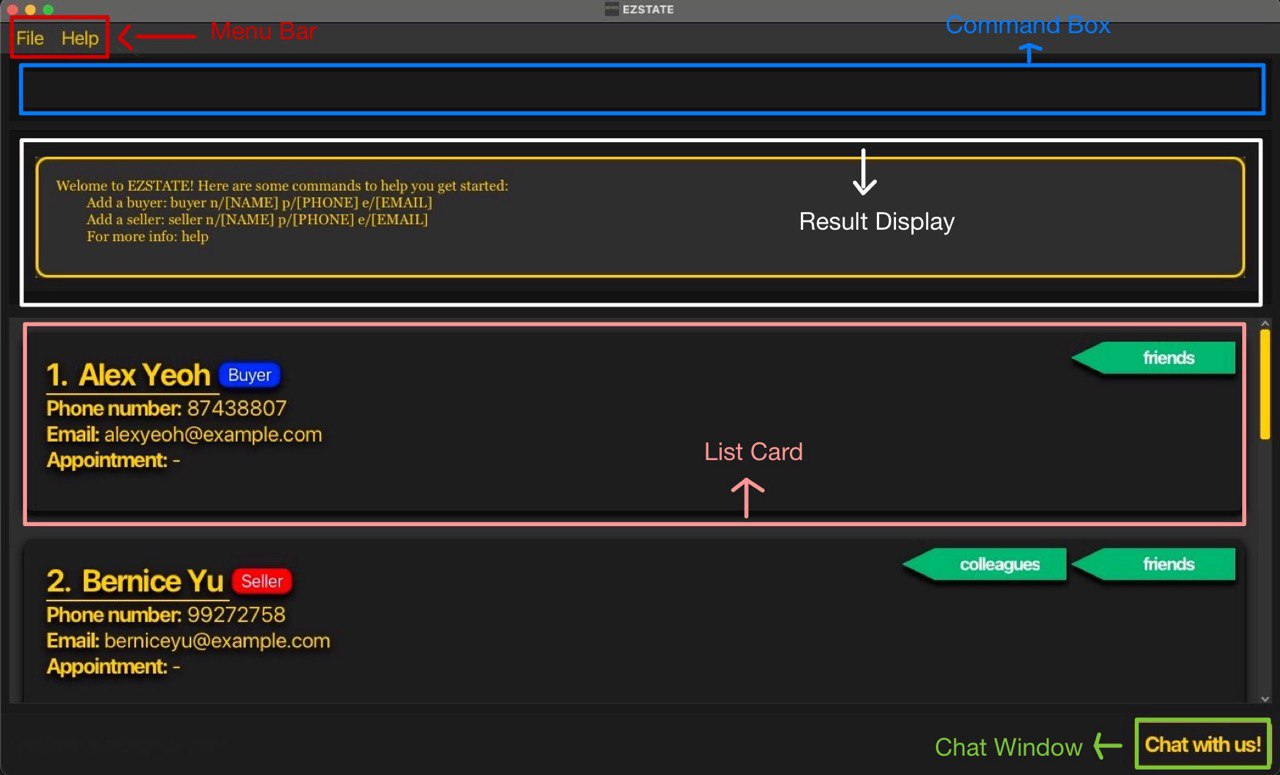
Menu Bar: Located at the top left, this includes options such asFileandHelpfor managing settings and accessing support.Command Box: The main area where users can enter commands to interact with the app.Result Display: Provides immediate feedback, displaying success or failure messages based on the user’s command. Situated below theCommand Box.List Card: Displays key information about clients or listings, depending on the user’s command. Situated below theResult DisplayChat Window: Located at the bottom right, this serves as a helpful assistant, offering guidance and support through interactive communication.
With a clear understanding of the GUI, let’s move on to how you can interact with EZSTATES using basic commands.
Basic Commands
To use EZSTATES, type commands in the command box and press Enter. Here are a few to try:
-
help: Opens the help window showing all commands. -
showclients: Shows all contacts in the system. -
showlistings: Shows all listings in the system. -
buyer n/John Doe p/98765432 e/johnd@example.com: Adds a buyer namedJohn Doewith a phone number98765432and emailjohnd@example.com. -
deleteclient 1: Deletes the contact at index 1 (e.g. “bob” according to the picture above). -
exit: Exits the app.
Once you’ve tried out these basic commands, it’s helpful to understand how they are organized. This will make it easier to navigate and use all commands in EZSTATES effectively, and to grasp how each part functions.
Command Structure
Understanding the command structure in EZSTATES is essential for efficient navigation and use of the app’s features. Each command in EZSTATES is designed to follow a clear, consistent format, allowing you to manage clients, listings, and appointments with precision and speed. By mastering this structure, you will find it easier to remember commands and customize inputs, making your experience smoother and enabling you to accomplish tasks more effectively.
This section breaks down the structure, reference, and prefixes used across all commands, so you can quickly become proficient with EZSTATES.
Commands in EZSTATES follow the same structure:
commandWord (REFERENCE) (PREFIXES)
| commandWord | REFERENCE | PREFIXES |
|---|---|---|
| Specifies the command to run | Comes before all prefixes and is used to make reference a particular client/listing Optional for some commands |
Used to specify various attributes/properties for a given commandWord Optional for some commands |
Reference Types
| REFERENCE | Meaning | Constraints | Remarks |
|---|---|---|---|
| INDEX1,2 | INDEX of a client or a listing in a list | INDEX are positive integers that are one-based (i.e. >= 1). |
Commonly used in edit and delete clients/listings to make reference to these objects in their respective lists |
Notes:
- Since
INDEXis one-based (i.e. starts from 1), the first item in the list cannot start with0. - EZSTATES handles errors related to the
INDEXparameter in two ways:- If
INDEXis an invalid number (e.g., non-positive integers, numbers larger than Integer.MAX_VALUE, or non-integer values like 4.5), it will be flagged as an invalid command format. - If
INDEXis a valid integer but exceeds the size of the currently displayed list (client/listing), it will be flagged as an invalid index. Supported values are [1, displayed list size].
- If
Prefix Notation
Prefixes follow the same structure:
prefix/Value
and can be either optional or mandatory, and variadic or not variadic. The table below showcases the four different possible notations of prefixes:
| Mandatory | Optional1 | |
|---|---|---|
| Not variadic | prefix/Value |
[prefix/Value] |
| Variadic2 | prefix/Value... |
[prefix/Value]... |
Notes:
- Optional prefixes can be omitted and the command will still be executed successfully (assuming all other parts of the command are correctly inputted).
- Variadic prefixes allow you to enter multiple values for a single command by separating them with spaces. For example:
t/friend t/colleague t/mentor
This lets you add multiple tags at once, making it easier to input bulk data.
Prefix Types
The prefixes used in EZSTATES are universal across all commands.
| Prefix | Meaning | Constraints | Valid | Invalid |
|---|---|---|---|---|
| n/ | name | Names should only contain alphanumeric characters and spaces, and it should not be blank. |
n/wen xuan, n/muhammad, n/sean2 |
n/!@#, n/ |
| p/ | phone | Phone numbers should only contain numbers, and it should be at least 3 digits long. |
p/123, p/91230000 |
p/12, p/abc123, p/ |
| e/ | Emails must follow the format local-part@domain. The local-part can contain alphanumeric characters and special characters (+_.-), but cannot start or end with special characters. The special characters cannot be consecutive. The domain must have at least one label, with each label starting and ending with alphanumeric characters and being at least 2 characters long. Labels can contain hyphens. |
e/bob@gmail.com, e/123@123 |
e/bobby, e/123@.com, e/@example.com |
|
| t/ | tag | Tag names should be alphanumeric. |
t/friend1, t/colleague, t/ |
t/friend@1, t/123@abc |
| d/ | date | Dates should be in the format dd-MM-yy or ddMMyy (e.g., 25-12-24 or 251224). |
d/08-12-24, d/081224 |
d/32-13-24, d/123456, d/ |
| fr/ | from | Times should be in the format HH:mm or HHmm (e.g., 0900 or 09:00). from time must precede to time. |
fr/0800, fr/08:00 |
fr/2500, fr/100, fr/8am |
| to/ | to | Times should be in the format HH:mm or HHmm (e.g., 0900 or 09:00). to time must supercede from time. |
to/1000, to/10:00 |
to/2500, to/110, to/ |
| pr/ | price | Price should only contain positive integers and cannot start with zeroes, and it should be at least 6 digits long. |
pr/100000, pr/45000000 |
pr/000123, pr/-1000, pr/12 |
| ar/ | area | Area should only contain positive integers and cannot start with zeroes, and it should be at least 2 digits long. |
ar/10, ar/100 |
ar/01, ar/-5, ar/ |
| add/ | address | Addresses can take any values, and it should not be blank. |
add/123 PASIR RIS (S)123456 |
add/ |
| reg/ | region | Only the following 9 regions are allowed: NORTH, SOUTH, EAST, WEST, NORTHEAST, SOUTHEAST, NORTHWEST, SOUTHWEST, CENTRAL. |
reg/east reg/northeast |
reg/xyz, reg/invalidregion |
| sel/ | seller | Can only take non-zero unsigned integer. | sel/1 sel/2 |
sel/0, sel/-1, sel/abc |
| buy/ | buyer | Can only take non-zero unsigned integer. | buy/1 buy/2 |
buy/0, buy/-2, buy/abc |
Remarks
Below are additional notes regarding certain prefixes. Please keep these in mind while using commands to help maintain data integrity and avoid unexpected issues.
n/
- Names are
space-sensitive. This means thatn/alexyeoh(0 space),n/alex yeoh(1 space) andn/alex yeoh(2 spaces) (not exhaustive) create three different profiles. - Names are
case-insensitive. This means thatn/alex yeohandn/AlEx YeOhrefer to the same name. - Duplicate names are not allowed within the clients or listings lists (e.g., two buyers or sellers both named
Bobbycannot exist). - Duplicate names between clients and listings are allowed (e.g. a client named
Bobbyand a listing namedBobbycan both exist). - Names have
no character limit, but lengthy names will be automatically truncated with an ellipsis. - Names can consist only of numbers, but use caution, as this may cause confusion when displayed alongside the client’s index.
- Allowable Edge Cases: Names can include single characters or initials (e.g.
n/Ais valid). While this is allowed, single-letter names might be confusing in lists with similar entries (e.g.n/A,n/B, etc.). - Names with excessive leading or trailing spaces are treated as names withouit (e.g.
n/Alice Johnson=n/Alice Johnson). - There is a known issue with the n/ prefix. Please refer to the Known Issues section.
p/
- It is permissible for different clients to have the same phone number.
- Phones have
no character limit, but lengthy phones will be automatically truncated with an ellipsis. - Numbers with leading zeros (e.g. p/0012345) are allowed, though these may be visually confusing or prone to misinterpretation.
- As an extension to pt. 3, a number with just
zeroesis allowed, although such a number may not appear realistic.
e/
- Emails may technically be invalid but still pass the regex test (e.g. 123@123). It’s up to the user to decide how they input their clients’ emails.
- Emails have
no character limit, but lengthy emails will be automatically truncated with an ellipsis. - Emails can have unusual domain labels as long as they’re valid (e.g.
e/user@x-y.comore/person@123.co). While valid, such domains may not appear realistic.
t/
- Tags are
case-sensitive. This means thatt/FRIENDandt/friendare treated as unique tags. - Very long tags (e.g., t/AAAAAAAAAAAAAAAAAAAAAAAAAAAAAAAAAAAAAAAAAAA) are permissible but might be visually truncated.
- When editing tags, the existing tags of the person will be removed (i.e. adding of tags is not cumulative).
d/
- There is no restriction on the date range, so unrealistic dates in the far future or past may be entered (e.g.
d/01-01-99).
fr/
NIL (all covered in Constraints)
to/
NIL (all covered in Constraints)
pr/
- While only positive values are allowed, there’s no limit on maximum value, allowing extremely high prices (e.g., pr/9999999999) which may affect the display of data.
- As per constraints, prices like
1000000.50are not allowed.
ar/
- The unit of measurement is
m². - There’s no maximum limit, so values like ar/99999999999999999999999999999 will pass, which may affect the display of data.
- As per constraints, areas like
1000.50are not allowed.
add/
- Unrealistically long addresses passes but will affect the display of data.
- Since addresses accept any value, symbols and non-standard characters (e.g.
add/123 *^&) will pass. - There is a known issue with the add/ prefix. Please refer to the Known Issues section.
reg/
- Regions are case-insensitive (i.e.
reg/eastandreg/Eastare the same).
sel/ & buy/
- Leading zeroes are allowed but will be trimmed (i.e.
sel/01andsel/1refer to the same seller).
Congratulations - you’ve successfully completed the Quick Start guide!
The next section offers an in-depth overview of all the commands available in EZSTATES.
Curious about how EZSTATES stores data? Check out the storage section for more information.
If you’re an advanced user looking to edit the JSON file directly, head over to this section for more information.
Features
EZSTATES features (i.e. commands) are divided into four main categories:
- Client Management Commands
- Add Buyer (
buyer) - Add Seller (
seller) - Show Clients (
showclients) - Find Clients (
find) - Edit Client (
editclient) - Delete Client (
deleteclient)
- Add Buyer (
- Appointment Management Commands
- Schedule Appointment (
apt) - Delete Appointment (
deleteapt) - Filter Appointments (
today)
- Schedule Appointment (
- Listing Management Commands
- Add Listing (
listing) - Show Listings (
showlistings) - Find Listings (
findlisting) - Edit Listing (
editlisting) - Add Buyers to Listing (
addlistingbuyers) - Remove Buyers from Listing (
removelistingbuyers) - Delete Listing (
deletelisting) - Clear Listings (
clearlistings)
- Add Listing (
- Utility Commands
- Clear (
clear) - Exit (
exit) - Help (
help) - More Info (
moreinfo) - Chat Window (
chatbot)
- Clear (
The following sections cover the command format, description, valid and invalid inputs, and special comments.
1. Client Management Commands
Commands for creating, updating, and deleting buyers and sellers.
Add Buyer
- Command:
buyer n/NAME p/PHONE e/EMAIL [t/TAG]... - Description: Creates a new buyer profile with specified details.
- Successful Execution:
Use Case #1: Adding a buyer named
Bobbywith phone number91124444and emailbobby123@gmail.comInput:
buyer n/Bobby p/91124444 e/bobby123@gmail.comOutput:
New buyer added: Bobby.
Phone: 91124444; Email: bobby123@gmail.com
Use Case #2: Adding a buyer named
Bobbywith phone number91124444, emailbobby123@gmail.com, tagsfriend,ownerInput:
buyer n/Bobby p/91124444 e/bobby123@gmail.com t/friend t/ownerOutput:
New buyer added: Bobby.
Phone: 91124444; Email: bobby123@gmail.com
- Failed Execution:
User Error #1: Missing
NAMEfieldInput:
buyer p/91124444 e/bobby123@gmail.comOutput:
Invalid command format!
buyer: Adds a buyer to the address book.
Parameters: n/NAME p/PHONE e/EMAIL [t/TAG]…
Example: buyer n/John Doe p/98765432 e/johnd@example.com t/friends t/owesMoney
User Error #2: Missing
PHONEfieldInput:
buyer n/Bobby e/bobby123@gmail.comOutput:
Invalid command format!
buyer: Adds a buyer to the address book.
Parameters: n/NAME p/PHONE e/EMAIL [t/TAG]…
Example: buyer n/John Doe p/98765432 e/johnd@example.com t/friends t/owesMoney
User Error #3: Missing
EMAILfieldInput:
buyer n/Bobby p/91124444Output:
Invalid command format!
buyer: Adds a buyer to the address book.
Parameters: n/NAME p/PHONE e/EMAIL [t/TAG]…
Example: buyer n/John Doe p/98765432 e/johnd@example.com t/friends t/owesMoney
User Error #4: Buyer already exists
Input:
buyer n/Bobby p/83485111 e/bobby1234@gmail.com
(Assuming nameBobbyalready exists)Output: This buyer already exists in the address book
- Special Comments
Add Seller
- Command:
seller n/NAME p/PHONE e/EMAIL [t/TAG]... - Description: Creates a new seller profile with specified details.
- Successful Execution:
Use Case #1: Adding a seller named
Bobbywith phone number91124444and emailjohn123@gmail.comInput:
seller n/Bobby p/91124444 e/bobby123@gmail.comOutput:
New seller added: Bobby.
Phone number: 91124444 and Email: bobby123@gmail.com
Use Case #2: Adding a seller named
Bobbywith phone number91124444, emailjohn123@gmail.com, tagsfriend,ownerInput:
seller n/Bobby p/91124444 e/bobby123@gmail.com t/friend t/ownerOutput:
New seller added: Bobby.
Phone number: 91124444 and Email: bobby123@gmail.com
- Failed Execution:
User Error #1: Missing
NAMEfieldInput:
seller p/91124444 e/bobby123@gmail.comOutput:
Invalid command format!
seller: Adds a seller to the address book.
Parameters: n/NAME p/PHONE e/EMAIL [t/TAG]…
Example: seller n/John Doe p/98765432 e/johnd@example.com t/friends t/owesMoney
User Error #2: Missing
PHONEfieldInput:
seller n/Bobby e/bobby123@gmail.comOutput:
Invalid command format!
seller: Adds a seller to the address book.
Parameters: n/NAME p/PHONE e/EMAIL [t/TAG]…
Example: seller n/John Doe p/98765432 e/johnd@example.com t/friends t/owesMoney
User Error #3: Missing
EMAILfieldInput:
seller n/Bobby p/91124444Output:
Invalid command format!
seller: Adds a seller to the address book.
Parameters: n/NAME p/PHONE e/EMAIL [t/TAG]…
Example: seller n/John Doe p/98765432 e/johnd@example.com t/friends t/owesMoney
User Error #4: Seller already exists
Input:
seller n/Bobby p/83485111 e/bobby1234@gmail.com
(Assuming nameBobbyalready exists)Output: This seller already exists in the address book
- Special Comments
Show Clients
- Command:
showclients - Description: Displays all clients in the system.
- Successful Execution:
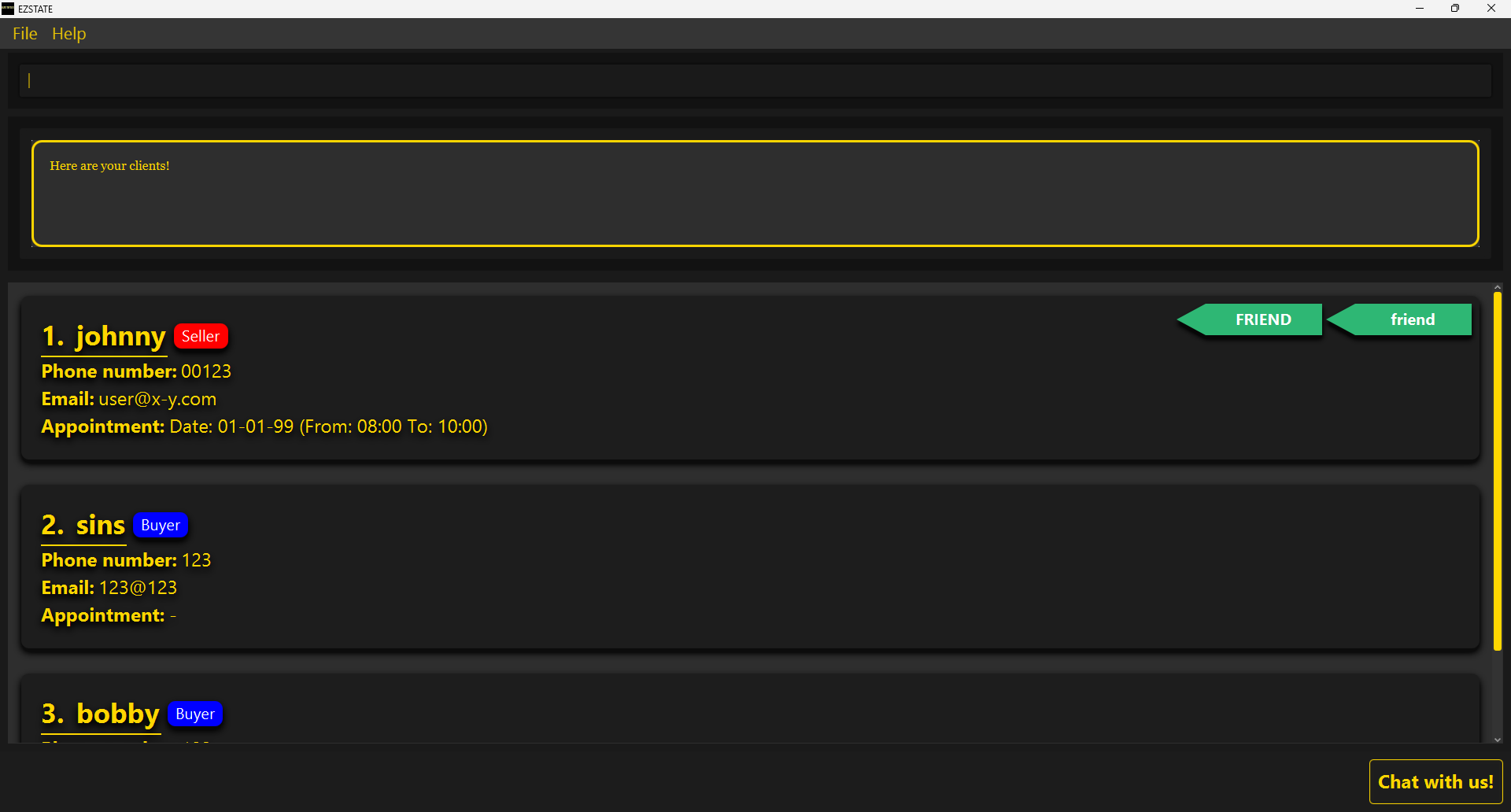
Use Case #1: Displaying all clients in the system
Input:
showclientsOutput: Here are your clients!
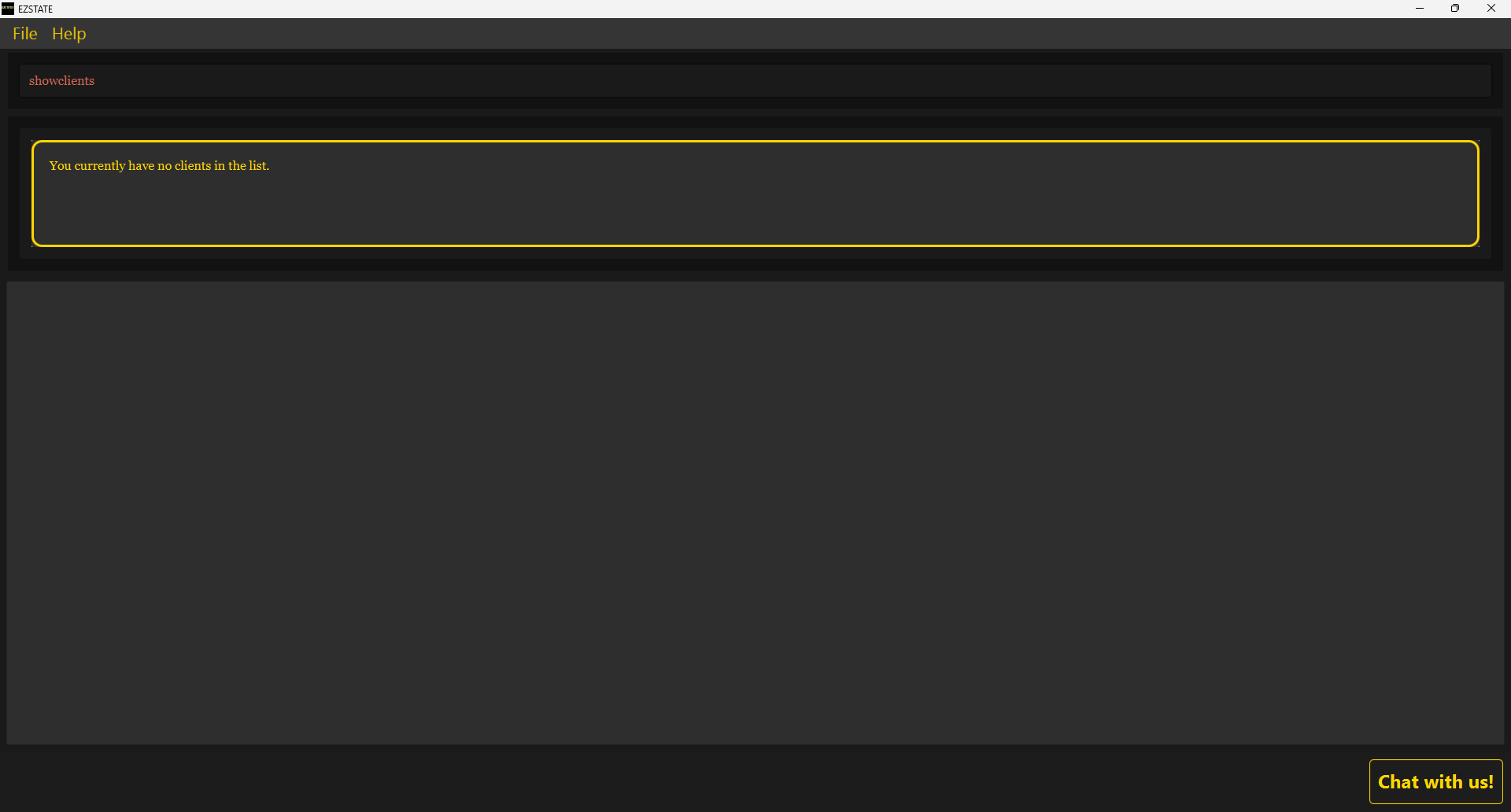
Use Case #2: Displaying all clients in the system (where there are none)
Input:
showclientsOutput: You currently have no clients in the list.
- Failed Execution: NIL
- Special Comments
- You are able to execute
showclientson an empty list of clients, as per Successful Execution Use Case #2
- You are able to execute
Find
- Command:
find KEYWORD [KEYWORD]... - Description: Finds the specified client(s) based on the provided keywords.
- Successful Execution:
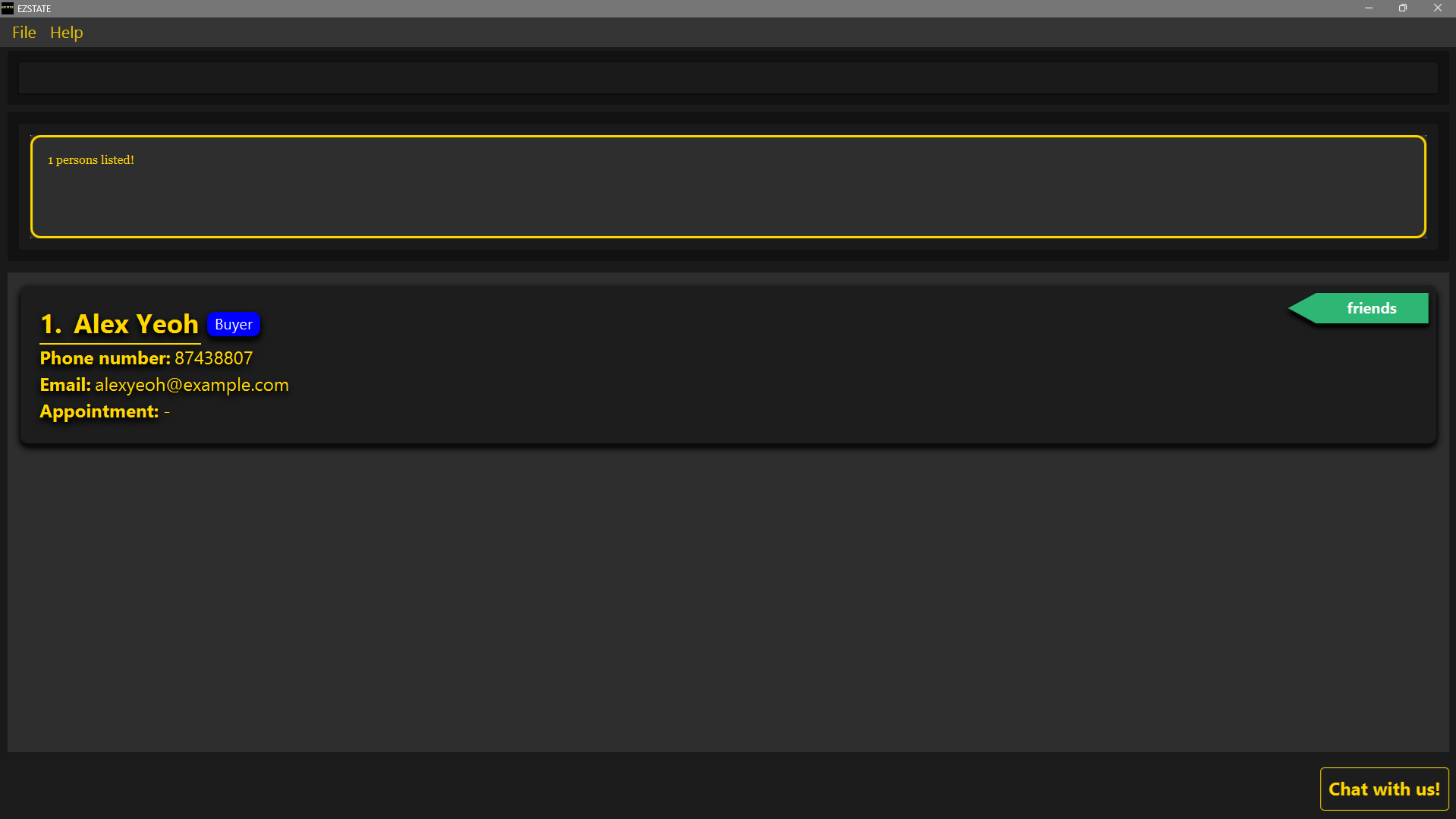
Use Case #1: Finding
AlexInput:
find AlexOutput: 1 persons listed!
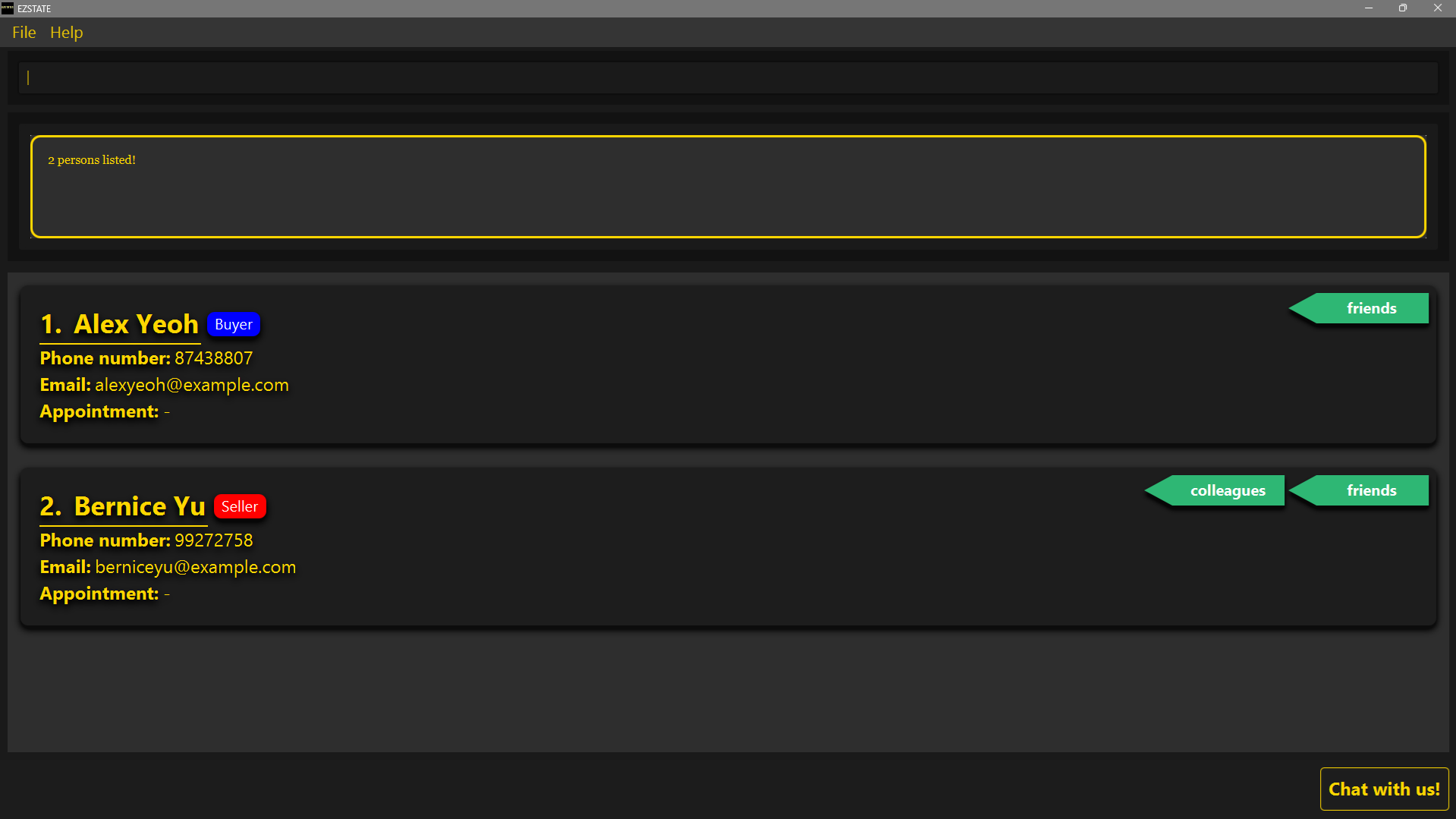
Use Case #2: Finding
AlexORBerniceInput:
find Alex BerniceOutput: 2 persons listed!
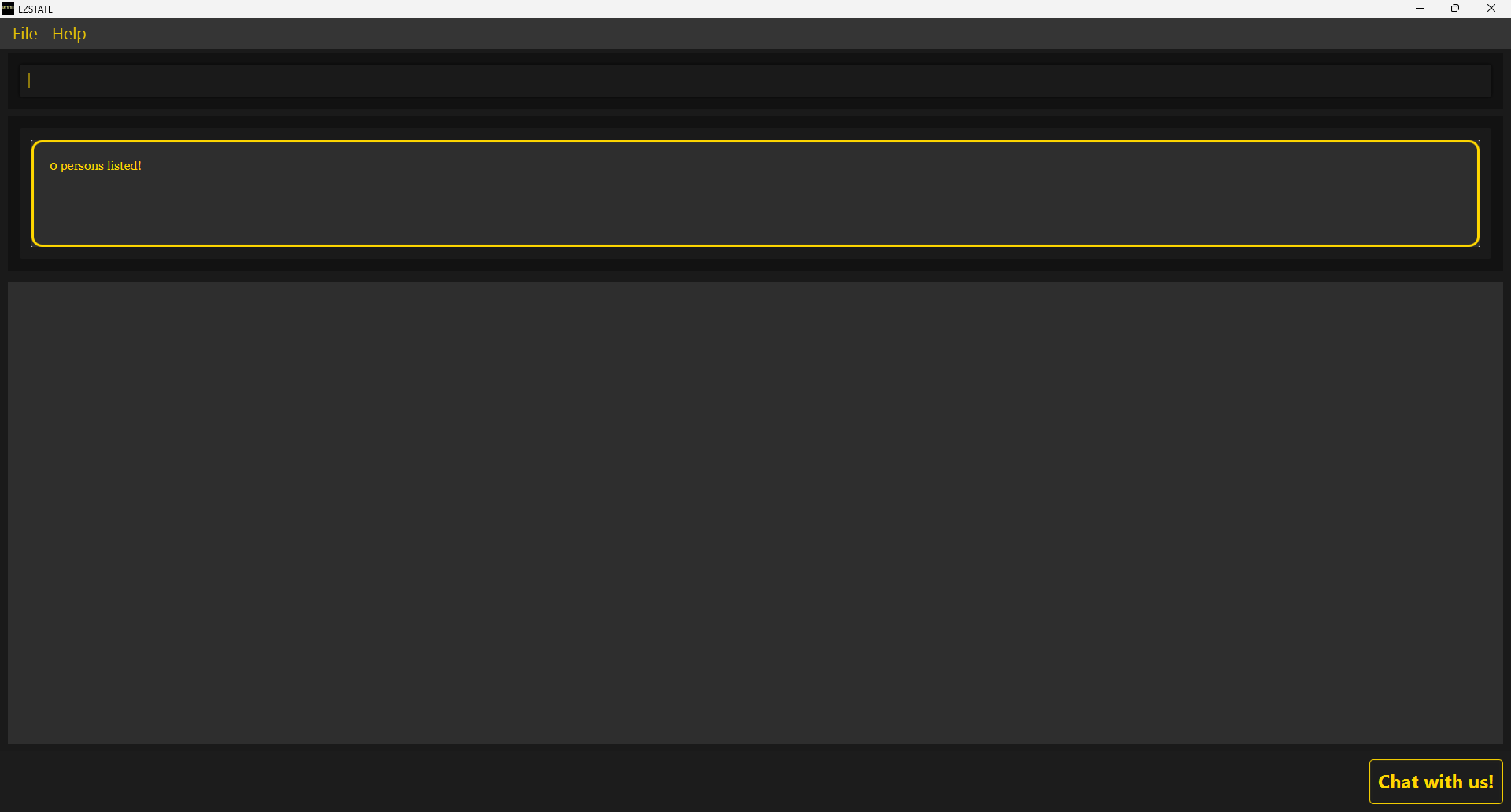
- Failed Execution:
User Error: Client not found
Input:
find noMatchingClientsOutput: 0 persons listed!
- Special Comments
- For cases where names consist of two or more parts (e.g. Wen Xuan), inputting
find Wen Xuanresults in finding clients containingWenORXuanin their names, as per Successful Execution Use Case #2.
- For cases where names consist of two or more parts (e.g. Wen Xuan), inputting
Edit Client
- Command:
editclient INDEX [n/NAME] [p/PHONE] [e/EMAIL] [t/TAG]... - Description: Edits the details of the specified client.
- Successful Execution:
Use Case #1: Changing name of
BobtoBobby(Assuming displayed index is 1)Input:
editclient 1 n/BobbyOutput:
Successfully edited Bobby.
Phone number: 91124444 and Email: bobby123@gmail.com!
Use Case #2: Changing phone of
Bobbyto97774444Input:
editclient 1 p/97774444Output:
Successfully edited Bobby.
Phone number: 97774444 and Email: bobby123@gmail.com!
Use Case #3: Changing email of
Bobbytobobby321@gmail.comInput:
editclient 1 e/bobby321@gmail.comOutput:
Successfully edited Bobby.
Phone number: 97774444 and Email: bobby321@gmail.com!
Use Case #4: Removing tags of
BobbyInput:
editclient 1 t/Output:
Successfully edited Bobby.
Phone number: 97774444 and Email: bobby321@gmail.com!
- Failed Execution:
User Error #1: No index found / Invalid type / Negative integer
Input #a:
editclient n/BobbyInput #b:
editclient #aInput #c:
editclient -1Output:
Invalid command format!
edit: Edits the details of the person identified by their name. Existing values will be overwritten by the input values.
Parameters: INDEX (must be a positive integer) [n/NAME] [p/PHONE] [e/EMAIL] [t/TAG]…
Example: editclient 1 e/johndoe@example.com p/91234567
User Error #2: Client index out of bounds (larger than number of clients)
Input:
editclient 100 n/BobbyOutput: The person index provided is invalid
- Special Comments
Delete Client
- Command:
deleteclient INDEX - Description: Deletes the specified client profile.
- Successful Execution:
Use Case: Delete
Bobfrom the address book (Assuming displayed index is 1)Input:
deleteclient 1Output:
Successfully deleted Bob. <br>
Phone number: 977774444 and Email: bobby123@gmail.com
- Failed Execution:
User Error #1: No index found / Invalid type / Negative integer
Input #a:
deleteclientInput #b:
deleteclient #aInput #c:
deleteclient -1Output:
Invalid command format!
delete: Deletes the client profile corresponding to the client’s name.
Parameters: INDEX (must be a positive integer)
Example: deleteclient 1
User Error #2: Client index out of bounds (larger than number of clients)
Input:
deleteclient 100Output: The person index provided is invalid
- Special Comments
- Refer to INDEX constraints.
2. Appointment Management
Commands for managing appointments between user and clients.

Schedule Appointment
- Command:
apt INDEX d/DD-MM-YY fr/HHmm to/HHmmORapt INDEX d/ddMMyy fr/HH:mm to/HH:mm - Description: Schedules a new appointment to be held with the specified client that includes the specified details (date, time).
- Successful Execution:
Use Case #1: Adding appointment
8th October 2024 7pm to 9pmfor clientBob(Assuming displayed index is 1)Input:
apt 1 d/08-10-24 fr/19:00 to/21:00Output:
Appointment scheduled for Bob on:
Date: 08-10-24 (From: 19:00 To: 21:00)
Use Case #2: Overwriting an existing appointment for client
Bobto be9th October 2024 10am to 12pminsteadInput:
apt 1 d/091024 fr/1000 to/1200Output:
Appointment scheduled for Bob on:
Date: 09-10-24 (From: 10:00 To: 12:00)
- Failed Execution:
User Error #1: Incorrect
DATEformatInput #a:
apt 1 d/09-10-2024 fr/1000 to/1200Input #b:
apt 1 d/aaa fr/1000 to/1200Output: Dates should be in the format dd-MM-yy or ddMMyy, e.g., 25-12-24 or 251224.
User Error #2: Incorrect
TIMEformatInput #a:
apt 1 d/20-10-24 fr/100000 to/1200Input #b:
apt 1 d/20-10-24 fr/aa to/1200Output: Times should be in the format HH:mm or HHmm, e.g., 0900 or 09:00.
User Error #3: No index found / Invalid type / Negative integer
Input #a:
apt d/20-10-24 fr/0800 to/1000Input #b:
apt aaInput #c:
apt -1Output:
Invalid command format!
apt: Adds an appointment to a client identified by the index number used in the displayed person list. Existing appointment will be overwritten with the new appointment.
Parameters: INDEX (must be a positive integer) d/ [DATE in ddMMyy] fr/ [FROM] to/ [TO]
Example: apt 1 d/ 201224 fr/ 0800 to/ 1000
User Error #4: Client index out of bounds
Input:
apt 100 d/20-10-24 fr/0800 to/1000Output: The person index provided is invalid!
User Error #5: The
Fromtime is later thanToInput:
apt d/111124 fr/0900 to/0800Output: Invalid from and to timings! From timing cannot be after to timing.
- Special Comments
Delete Appointment
- Command:
deleteapt INDEX - Description: Deletes an appointment with the specified client.
- Successful Execution:
Use Case: Deleting appointment for
Bob(Assuming displayed index is 1)Input:
deleteapt 1Output: Successfully deleted appointment from Bob

- Failed Execution:
User Error #1: Client index out of bounds
Input:
deleteapt 100Output: The person index provided is invalid
User Error #2: No index found / Invalid type / Negative integer
Input #a:
deleteapt -1Input #b:
deleteapt aaInput #c:
deleteaptOutput:
Invalid command format!
deleteapt: Deletes the appointment identified by the index number used in the displayed person list.
Parameters: INDEX (must be a positive integer)
Example: deleteapt 1
- Special Comments
Today
- Command:
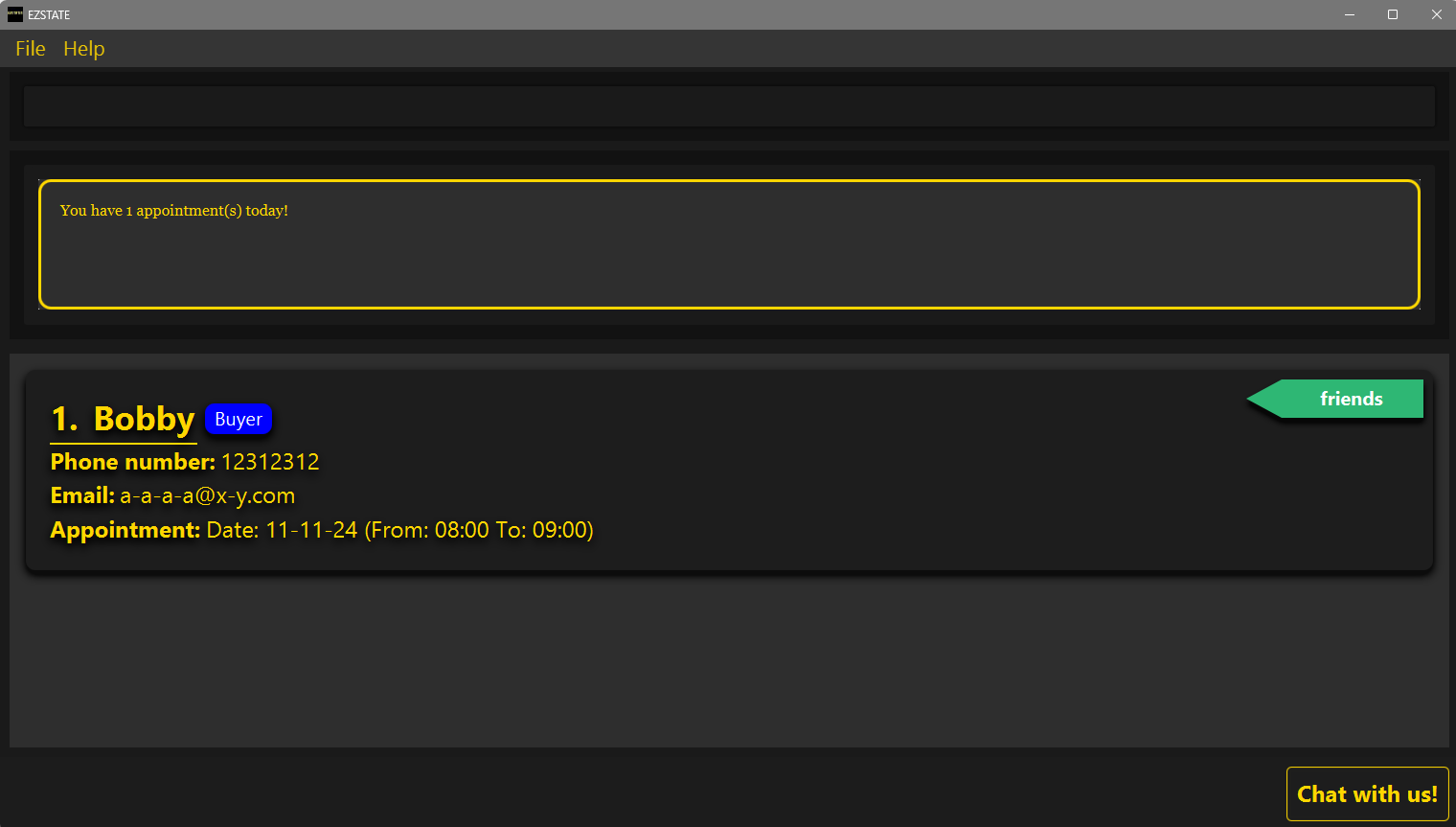
today - Description: Finds clients that have an appointment today
- Successful Execution:
Use Case: Finding clients with appointments today
Input:
todayOutput: You have 1 appointment(s) today!
- Failed Execution:
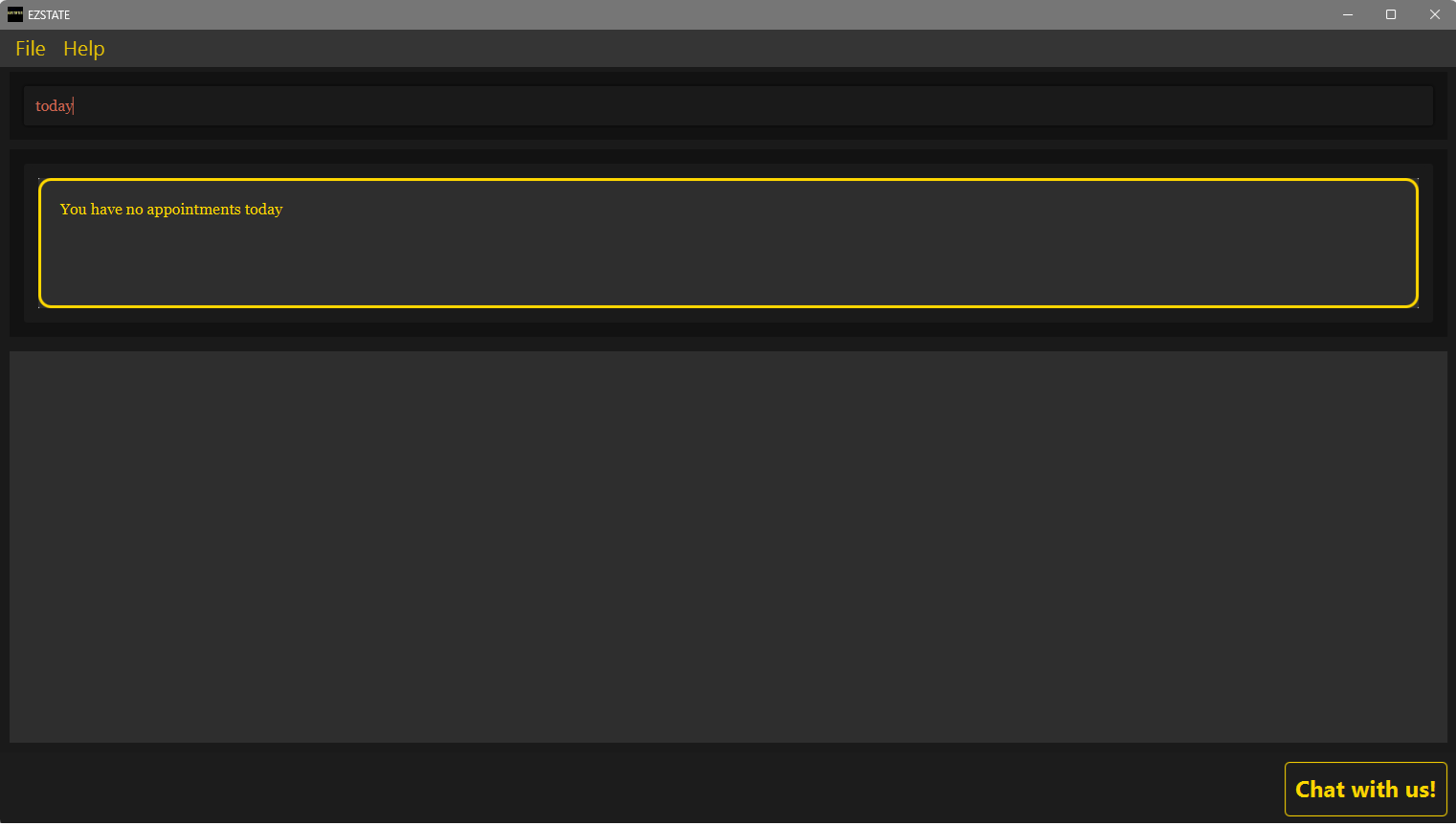
User Error: No appointments today
Input:
todayOutput: You have no appointments today
- Special Comments: NIL
3. Listing Management
Commands for managing property listings and associating clients with listings.
Add Listing
- Command:
listing n/NAME pr/PRICE ar/AREA add/ADDRESS reg/REGION sel/SELLER_INDEX [buy/BUYER_INDEX]... - Description: Adds a new listing associated to the seller with the specified details.
- Successful Execution:
Use Case #1: Adding a listing with name
Warton House, price400000, area100, address123 PASIR RIS (S)123456, regioneast, sellerBernice Yu, buyerAlex YeohInput:
listing n/Warton House pr/400000 ar/100 add/123 PASIR RIS (S)123456 reg/east sel/2 buy/1Output:
New listing added: Warton House.
Address: 123 PASIR RIS (S)123456
Use Case #2: Adding a listing with no buyers
Input:
listing n/Warton House pr/400000 ar/100 add/123 PASIR RIS (S)123456 reg/east sel/2Output:
New listing added: Warton House.
Address: 123 PASIR RIS (S)123456
- Failed Execution:
User Error #1: Seller index out of bounds
Input:
listing n/Warton House pr/400000 ar/1000 add/123 PASIR RIS (S)123456 reg/east sel/100Output: The seller index provided is invalid!
User Error #2: Buyer index out of bounds
Input:
listing n/Warton House pr/400000 ar/100 add/123 PASIR RIS (S)123456 reg/east sel/2 buy/100Output: The buyer index (100) provided is invalid!
User Error #3: Attempting to add a buyer as a seller of a listing
Input:
listing n/Warton House pr/400000 ar/100 add/123 PASIR RIS (S)123456 reg/east sel/1 buy/1Output:
The seller index specified is not a seller:
1. Alex Yeoh
User Error #4: Attempting to add a seller as a buyer of a listing
Input:
listing n/Warton House pr/400000 ar/100 add/123 PASIR RIS (S)123456 reg/east sel/2 buy/2Output:
The buyer index specified is not a buyer:
2. Bernice Yu
- Special Comments
Show Listings
- Command:
showlistings - Description: Displays all current listings.
- Successful Execution:
Use Case #1: To show all listings in EZSTATES
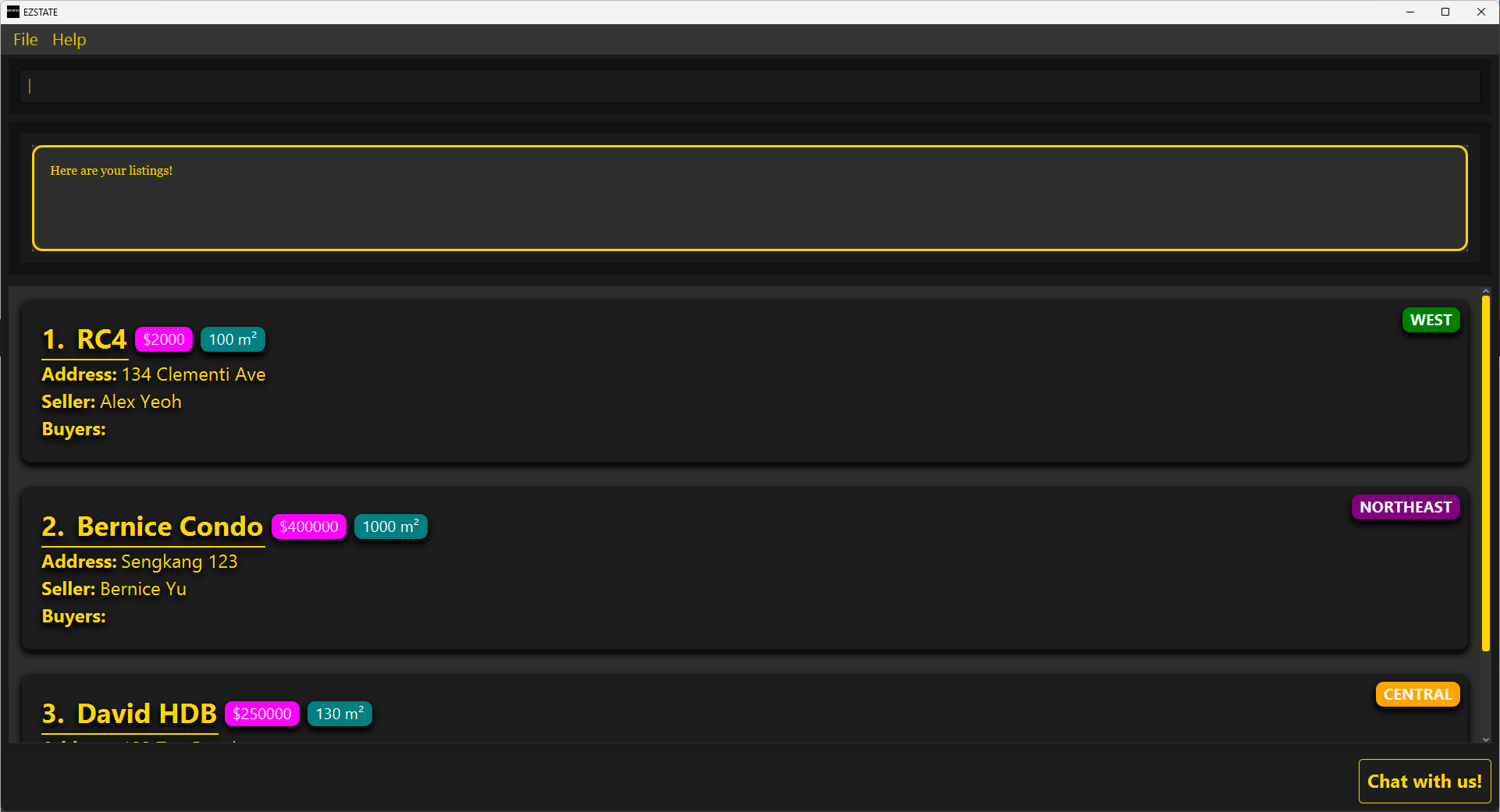
Input:
showlistingsOutput: Here are your listings!
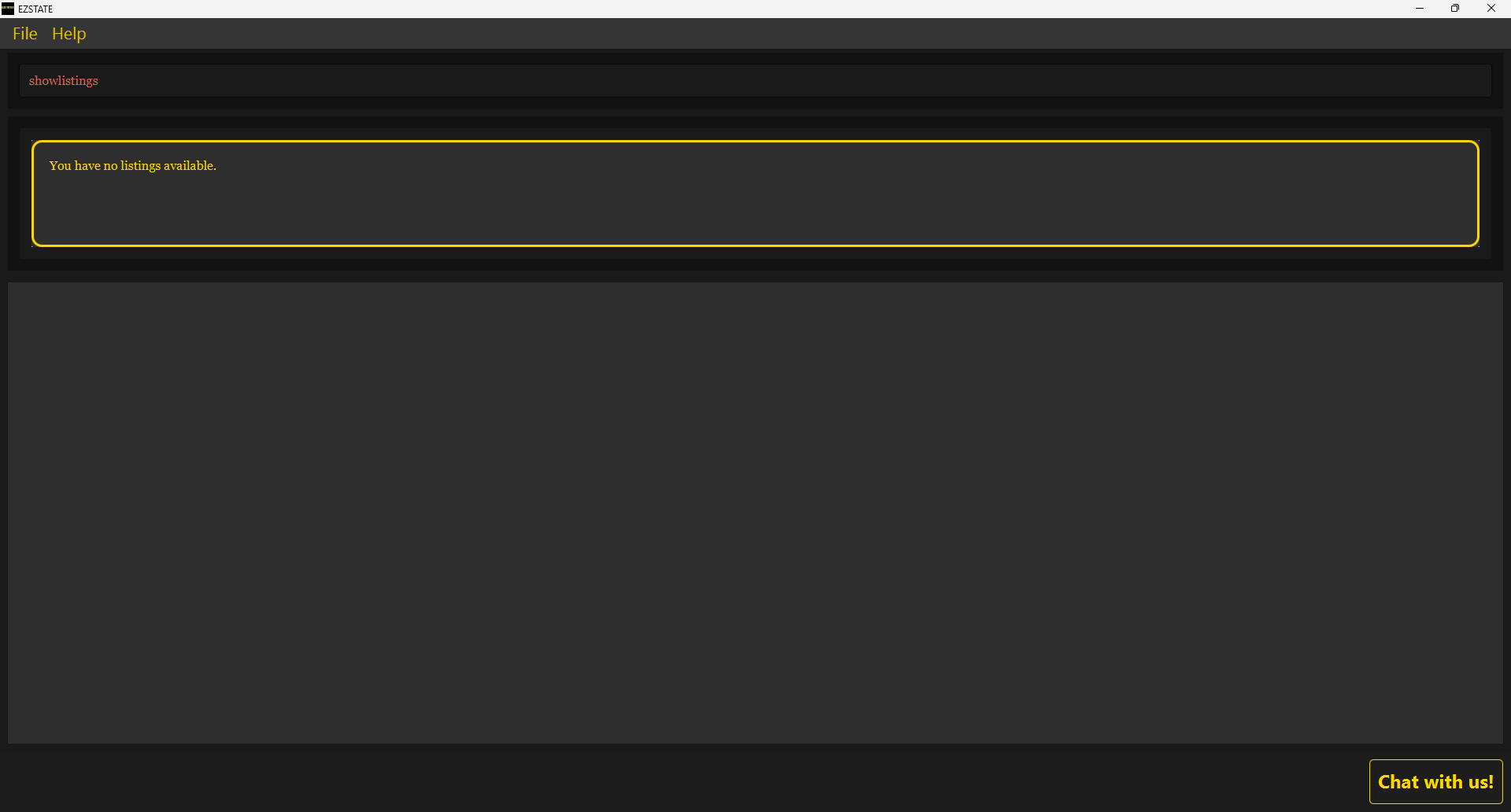
Use Case #2: To show all listings (when there are none)
Input:
showlistingsOutput: You have no listings available.
- Failed Execution: NIL
- Special Comments:
- You are able to show an empty list of listings, as per Successful Execution Use Case #2
Find Listings
- Command:
findlisting KEYWORD [KEYWORD]... - Description: Finds the specific listing(s) based on the provided keywords
- Successful Execution:
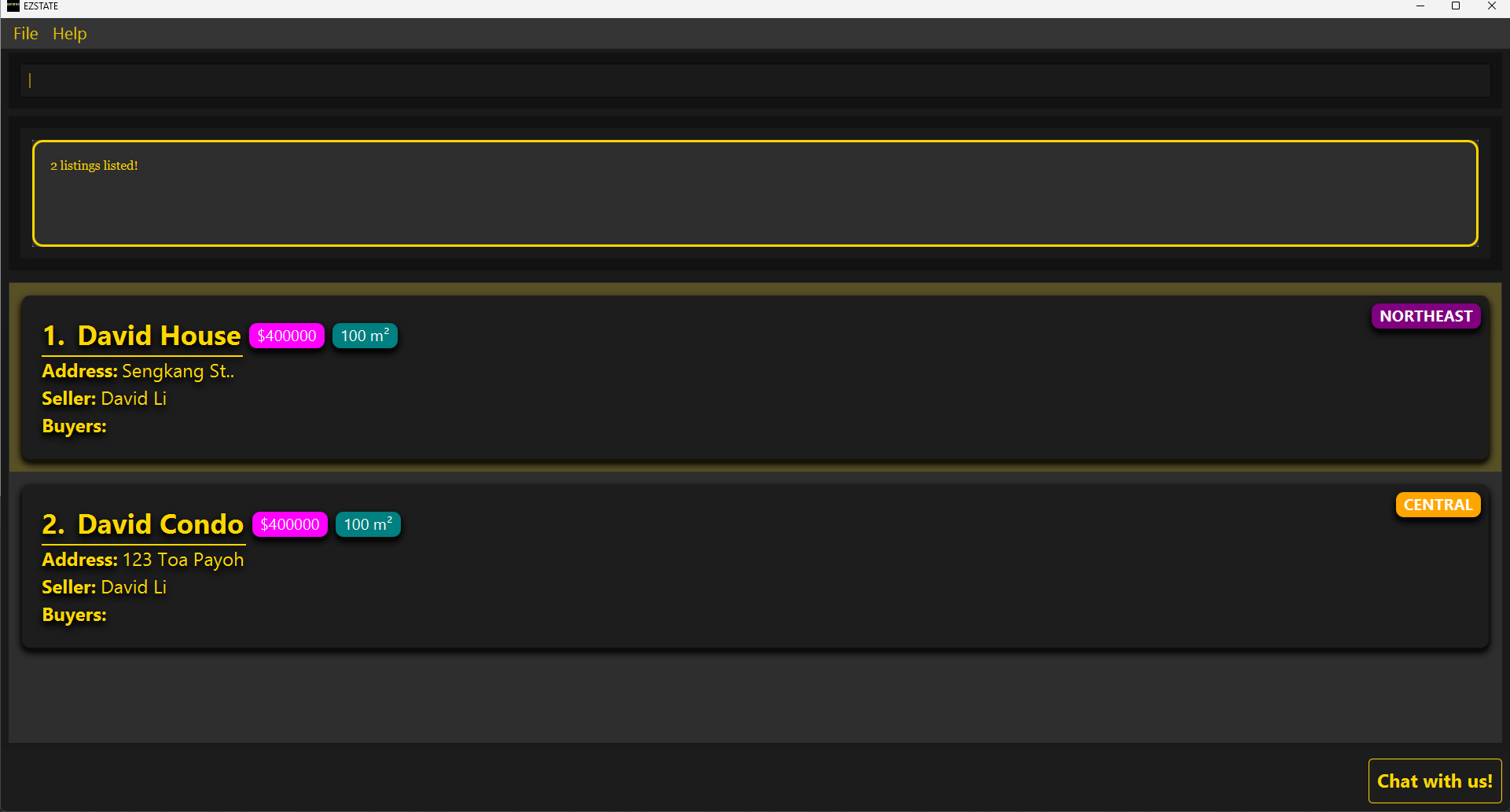
Use Case #1: Finding listings with
DavidInput:
findlisting davidOutput: 2 listings listed!
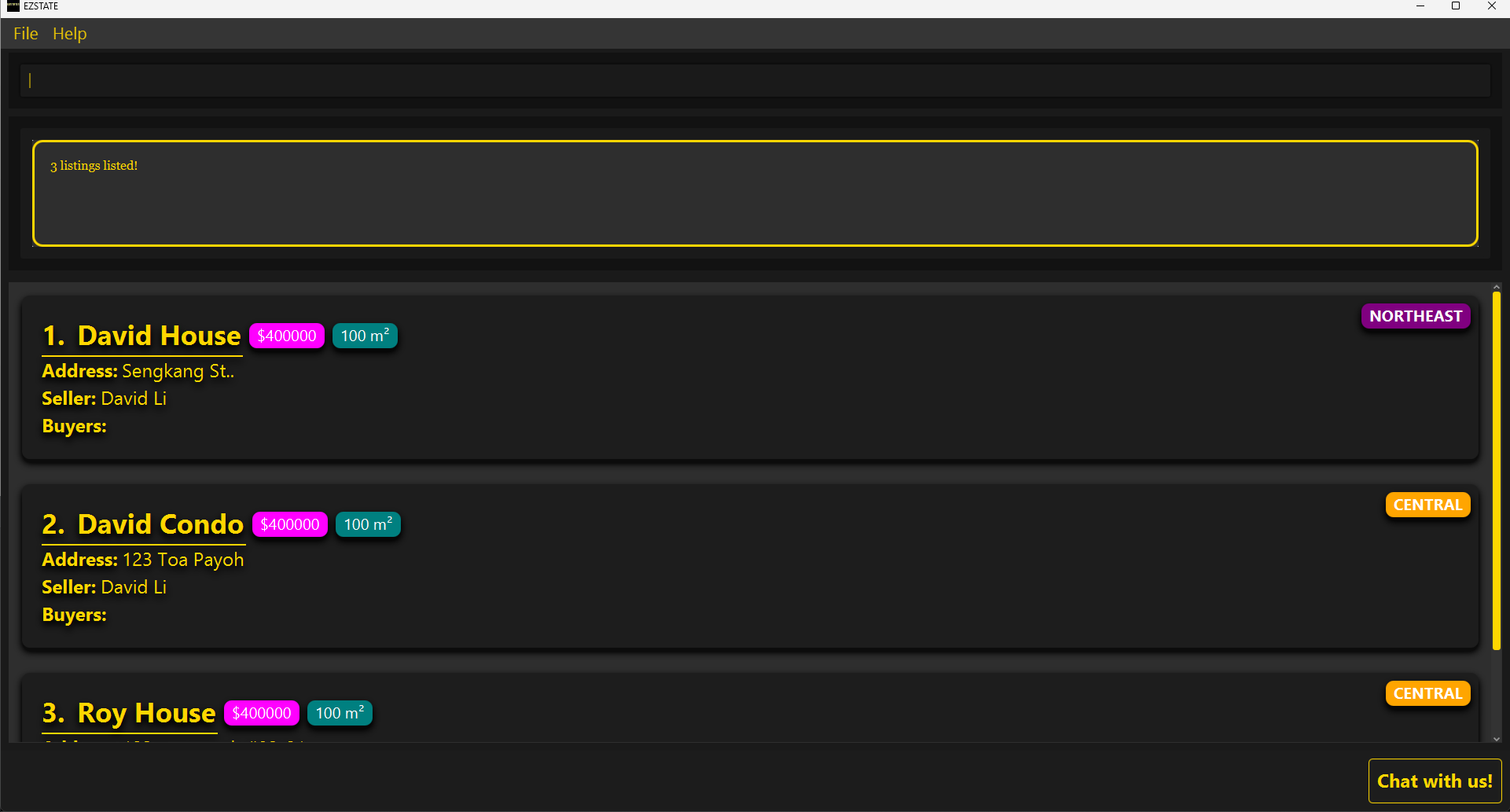
Use Case #2: Finding listings with
DavidORHouseInput:
findlisting david houseOutput: 3 listings listed!
- Failed Execution:
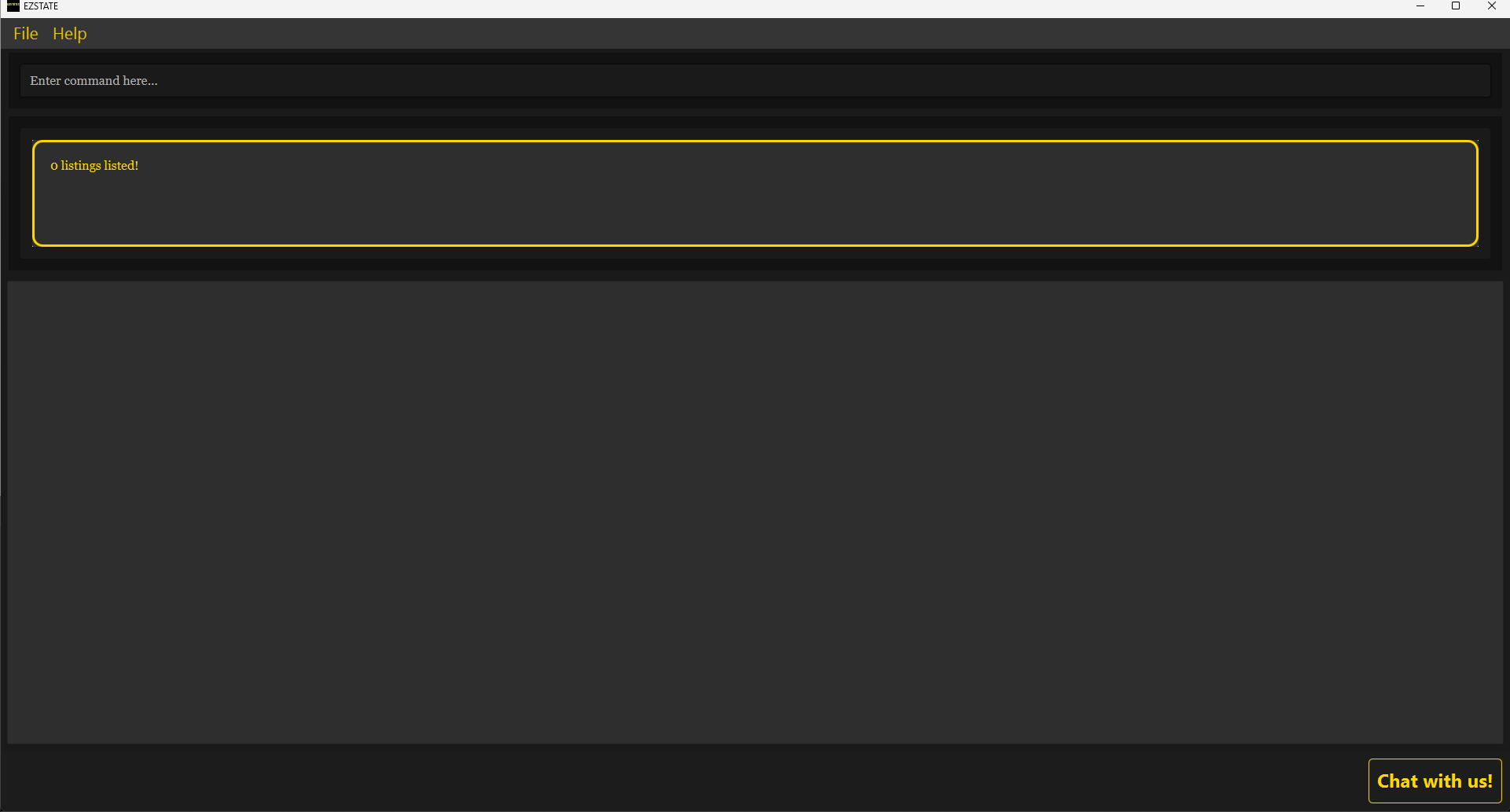
User Error: No matching listings
Input:
findlisting noMatchingListingsOutput: 0 listings listed!
- Special Comments
- Similar to
findcommand, for cases where names consist of two or more parts (e.g. David House), inputtingfindlisting David Houseresults in finding listings containingDavidORHousein their names, as per Successful Execution Use Case #2.
- Similar to
Edit Listing
- Command:
editlisting INDEX [n/NAME] [pr/PRICE] [ar/AREA] [add/ADDRESS] [reg/REGION] - Description: Edits the details of the listing identified by the listing index number. Buyers cannot be edited using this command. Use
addlistingbuyersorremovelistingbuyersto manage buyers. - Successful Execution:
Use Case #1: Editing listing
RC4to becomeRC445with area150Input:
editlisting 1 n/RC445 ar/150Output: Successfully edited listing: RC445. Address: test
Use Case #2: Editing listing
RC4region to becomecentralInput:
editlisting 1 reg/centralOutput: Successfully edited listing: RC445. Address: test
- Failed Execution:
User Error #1: Listing index out of bounds
Input:
editlisting 1000Output: The listing index provided is invalid!
User Error #2: Changing name to pre-existing name (or address)
Input:
editlisting 1 n/RC5(assuming RC5 already exists in the system)Output: This listing name / address already exists in the system.
User Error #3: No prefixes provided
Input:
editlisting 1Output: At least one field to edit must be provided.
User Error #4: No index found / Invalid type / Negative integer
Input #a:
editlisting n/aaaaInput #b:
editlisting aInput #c:
editlisting -1Output:
Invalid command format!
editlisting: Edits the details of the listing identified by the listing index number. Buyers cannot be edited using this command. Useaddlistingbuyersorremovelistingbuyersto manage buyers.
Parameters: LISTING_INDEX [n/NAME] [pr/PRICE] [ar/AREA] [add/ADDRESS] [reg/REGION]…
Example: editlisting 2 pr/450000 ar/1200
- Special Commands
- Refer to INDEX constraints and the remarks and constraints for the following prefixes: n/ pr/ ar/ add/ reg/ sel/ & buy/
- There is a known issue where a listing can be edited to assign a buyer as its seller. This will also be documented under Known Issues for reference.
Add Buyers to Listing
- Command:
addlistingbuyers INDEX buy/BUYER_INDEX [buy/MORE_BUYER_INDEXES]... - Description: Associates buyers with a specified listing.
- Successful Execution:
Use Case #1: Adding one buyer
Alex Yeohto listingRC4(Assuming RC4 index is 1)Input:
addlistingbuyers 1 buy/1Output:
Buyers added to listing: RC4.
Address: 134 Clementi Ave
Use Case #2: Adding two buyers
Alex YeohandCharlotte Oliveiroto listingDavid HDB(Assuming David HDB index is 2)Input:
addlistingbuyers 2 buy/1 buy/3Output:
Buyers added to listing: David HDB.
Address: 123 Clementi Ave
- Failed Execution:
User Error #1: Listing index out of bounds / Listing index not found / Invalid type / Negative integer
Input #a:
addlistingbuyers 100 buy/1Input #b:
addlistingbuyers buy/1Input #c:
addlistingbuyers aaInput #d:
addlistingbuyers -1 buy/1Output: The listing index provided is invalid!
User Error #2: Buyer index not found / Invalid type / Negative integer
Input #a:
addlistingbuyers 1 buy/Input #b:
addlistingbuyers 1 buy/aaInput #c:
addlistingbuyers 1 buy/-1Output: Index is not a non-zero unsigned integer.
User Error #3: Person is not a buyer
Input:
addlistingbuyers 1 buy/1
(Assuming client with index 1 is a seller)Output: The specified person is not a buyer:
1. bob
User Error #4: Missing
buy/prefixInput:
addlistingbuyers 1Output:
Invalid command format!
addlistingbuyers: Adds buyers to the listing identified by its index. Parameters: LISTING_NAME buy/BUYER_NAME [buy/MORE_BUYER_NAMES]…
Example: addlistingbuyers 1 buy/1 buy/3
- Special Comments
- Refer to INDEX constraints and the remarks and constraints for the following prefix: buy/
- There is a minor known issue regarding the failure messsage for User Error #4. The Result Display should show
LISTING_INDEXinstead ofLISTING_NAME. This will also be documented under Known Issues for reference.
Remove Buyers from Listing
- Command:
removelistingbuyers INDEX buy/BUYER INDEX [buy/MORE_BUYER_INDEXES]... - Description: Removes buyers associated with a specified listing.
- Successful Execution:
Use Case #1: Removing buyers
Alex YeohandCharlotte Oliveirofrom listingRC4(Assuming RC4 index is 1)Input:
removelistingbuyers 1 buy/1 buy/3Output:
Buyers removed from listing: RC4.
Removed buyers: Alex Yeoh, Charlotte Oliveiro
- Failed Execution:
User Error #1: Listing index out of bounds / Listing index not found / Invalid type / Negative integer
Input #a:
removelistingbuyers 100 buy/1Input #b:
removelistingbuyers buy/1Input #c:
removelistingbuyers aaInput #d:
removelistingbuyers -1 buy/1Output: The listing index provided is invalid!
User Error #2: Buyer index not found / Invalid type / Negative integer
Input #a:
removelistingbuyers 1 buy/Input #b:
removelistingbuyers 1 buy/aaInput #c:
removelistingbuyers 1 buy/-1Output: Index is not a non-zero unsigned integer.
User Error #3: Person specified is not buyer
Input:
removelistingbuyers 1 buy/2Output:
The specified person is not a buyer:
2. Bernice Yu
User Error #4: Person specified is not a buyer for the listing
Input:
removelistingbuyers 1 buy/1Output:
The specified buyer Alex Yeoh is not a buyer of the listing RC4.
Address: 134 Clementi Ave.
User Error #5: Buyer index out of bounds
Input:
removelistingbuyers 1 buy/1000Output: The person index provided is invalid!
User Error #6: Missing
buy/prefixInput:
removelistingbuyers 1Output:
Invalid command format!
removelistingbuyers: Removes buyers from the listing identified by its index number used in the displayed listing list Parameters: LISTING_INDEX buy/BUYER_INDEX [buy/MORE_BUYER_INDEXES]…
Example: removelistingbuyers 1 buy/1 buy/3
- Special Comments
Delete Listing
- Command:
deletelisting INDEX - Description: Deletes a specified listing.
- Successful Execution:
Use Case #1: Deleting listing
Warton House(Assuming displayed index is 1)Input:
deletelisting 1Output: Successfully deleted listing: Warton House
- Failed Execution:
User Error #1: Listing index out of bounds
Input:
deletelisting 100Output: This listing does not exist in EZSTATES
User Error #2: No index found / Invalid type / Negative integer
Input #a:
deletelistingInput #b:
deletelisting aainput #c:
deletelisting -1Output:
Invalid command format!
deletelisting: Deletes the listing identified by its index number used in the displayed listing list.
Parameters: LISTING_INDEX
Example: deletelisting 1
- Special Comments
- Refer to INDEX constraints.
Clear Listings
- Command:
clearlistings - Description: Deletes ALL listings.
- Successful Execution:
Use Case: Clear all listings in EZSTATES
Input: clearlistings
Output: All listings have been cleared!
- Failed Execution: NIL
- Special Comments: NIL
4. Utility Commands
Miscellaneous commands for application utility, such as clearing, exiting, and displaying help.
Clear
- Command:
clear - Description: Clears all clients and listings.
- Successful Execution:
Use Case: Clear all clients and listings in EZSTATES
Input: clear
Output: Address book and listings has been cleared!
- Failed Execution: NIL
- Special Comments: NIL
Exit
- Command:
exit - Description: Exits the application.
- Successful Execution:
Use Case: Exit the application
Input: exit
Output: Exiting Address Book as requested …
- Failed Execution: NIL
- Special Comments: NIL
Help
- Command:
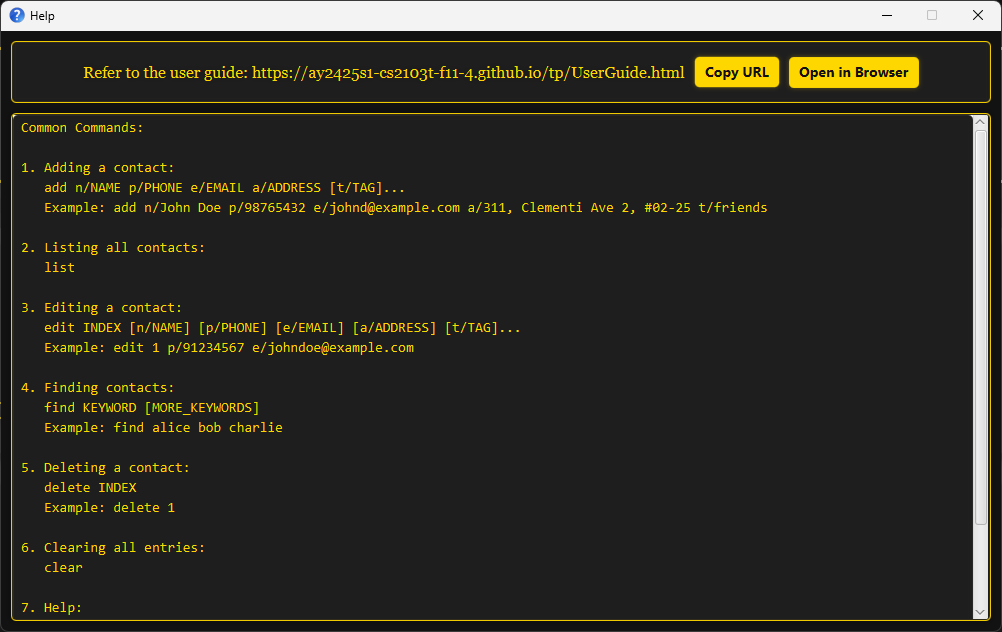
help - Description: Displays a list of available commands and their descriptions.
- Successful Execution:
Use Case: Accessing help
Input:
helpOutput: Opened help window.
- Failed Execution: NIL
- Special Comments: NIL
More Info
- Command:
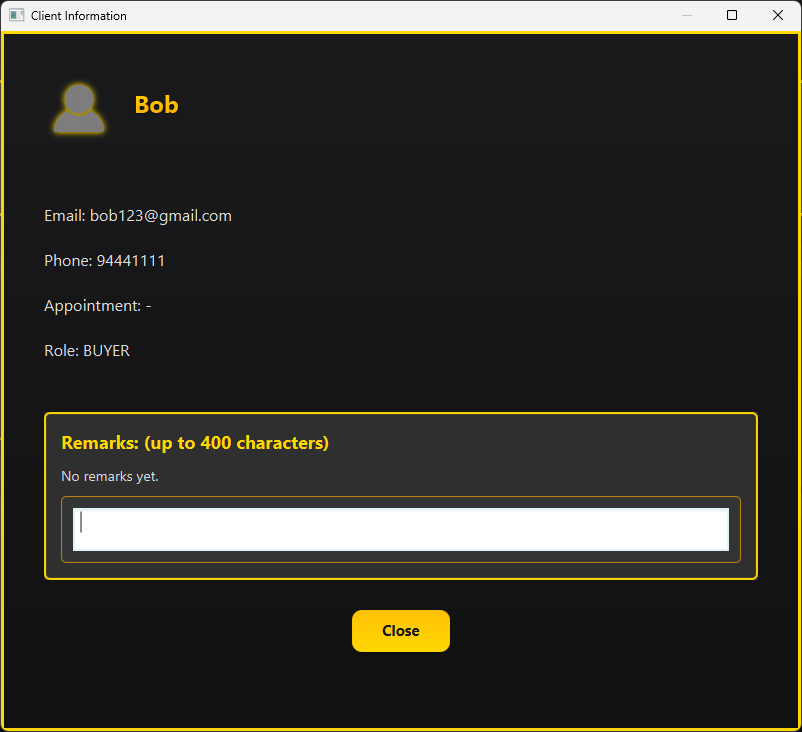
moreinfo INDEX - Description: Provides additional information about a specific client.
- Successful Execution:
Use Case: Finding out more information about
BobInput:
moreinfo 1Output: Opened window for client’s information.
- Failed Execution:
User Error #1: Client index out of bounds
Input:
moreinfo 100Output: The person index provided is invalid!
User Error #2: No index provided
Input:
moreinfoOutput:
Invalid command format!
moreinfoCLIENT_INDEX: Open a window to more information about the client.
Example: moreinfo 1
- Special Comments:
- Refer to INDEX constraints.
- The
Outputfor User Error #2 has a missing parameters line where the CLIENT_INDEX should be. The intended look is:
Invalid command format!
moreinfo: Open a window to more information about the client.
Parameters: CLIENT_INDEX
Example: moreinfo 1
This is a known issue which will also be documented under Known Issues for future reference.
Chat Window
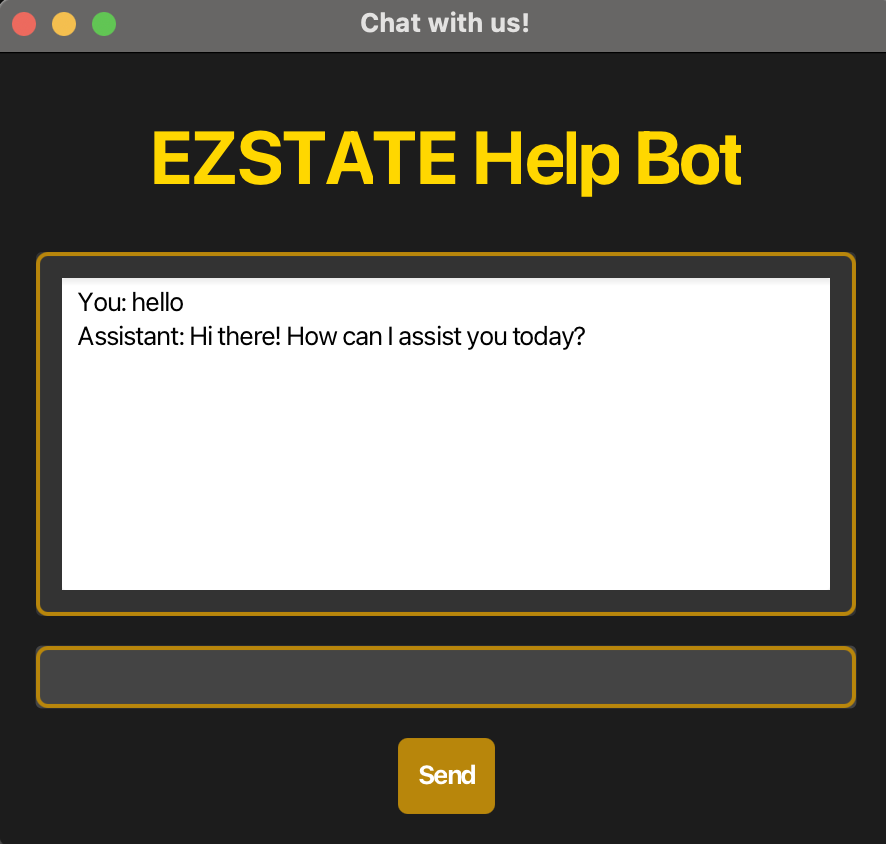
input refers to the command box inside the chat window, and not the one in EZSTATES main GUI.
For clarity, the first
Output demonstration will utilise a screenshot. Subsequent Output demonstrations will be written out. It will be understood that they are referring to the output inside the Result Display of the chat window.
- Command:
chatbot - Description: Opens a chatbot that answers basic queries.
- Successful Execution:
Use Case #1: Valid Greeting
Input:
helloOutput:
Use Case #2: Valid Query
Input:
how do i add a listingOutput:
Assistant: This is how to add a listing!
listing n/{name} pr/{price} ar/{area} add/{address} reg/{region} sel/{seller} (Optional: buy/{buyer1} buy/{buyer2} …)
Use Case #3: Valid Farewell
Input:
see yaOutput: Assistant: Goodbye! Have a great day!
- Failed Execution:
User Error #1: Invalid Query
Input:
invalid inputOutput: Assistant: I’m sorry, I didn’t understand that. Can you please rephrase?
- Special Comments:
- There is a known issue where the chatbot text input field appears in black, which does not contrast well with its gray background. This will also be documented under Known Issues for reference.
Saving the data
EZSTATES data are saved in the hard disk automatically after any command that changes the data. There is no need to save manually.
Editing the data file
EZSTATES data are saved automatically as a JSON file:
[JAR file location]/data/addressbook.json
Advanced users are welcome to update data directly by editing that data file.
Furthermore, certain edits can cause EZSTATES to behave in unexpected ways (e.g., if a value entered is outside the acceptable range). Therefore, edit the data file only if you are confident that you can update it correctly.
FAQ
Q: Can I use EZSTATES without any prior programming knowledge?
A: Of course! EZSTATES is designed to be user-friendly and does not require the user to have programming knowledge to use.
By reading through our User Guide, you will be able to learn how to use EZSTATES effectively.
Q: How do I transfer my data to another Computer?
A: Install the app in the other computer and overwrite the empty data file it creates with the file that contains the data of your previous EZSTATES home folder.
Q: Can I look at all my clients and listings at the same time?
A: Although you are allowed to open EZSTATES using two terminals, this is not recommended as the data saved on one window is not saved on
the separate window. Please utilise the showclients or showlistings commands to navigate between your clients and listings.
Q: Where can I find more help or report bugs?
A: For more help, refer to the User Guide or reach out to the project’s repository on GitHub. If you encounter any bugs or issues, please submit an issue report through the GitHub Issues section.
Known issues
- When using multiple screens, if you move the application to a secondary screen, and later switch to using only the primary screen, the GUI will open off-screen. The remedy is to delete the
preferences.jsonfile created by the application before running the application again. - If you minimize the Help Window and then run the
helpcommand (or use theHelpmenu, or the keyboard shortcutF1) again, the original Help Window will remain minimized, and no new Help Window will appear. The remedy is to manually restore the minimized Help Window. - For the n/ prefix, users are not able to put slashes in their names (e.g. Kumar S/O Navareen). A temporary workaround is to input
son oforsoors ountil this issue has been rectified. - For the add/ prefix, addresses are case-sensitive. As a result,
add/123 Clementi Aveandadd/123 clementi avewill be treated as distinct addresses, which may lead to unintentional duplicates. - For the Edit Listing command, users can modify listings to assign a buyer as the seller of a listing.
- For the Add Buyers to Listing command, the Result Display displays an incorrect error message.
- For the MoreInfo command, the
Outputfor User Error #2 has a missing parameters line where the CLIENT_INDEX should be. Refer to the Special Comments section under More Info for more clarification. - For the Chatbot, the text input field appears in black, which does not contrast well with its gray background.
Command summary
| Action | Format, Examples |
|---|---|
| Add Buyer | buyer n/NAME p/PHONE e/EMAILe.g., buyer n/James Ho p/22224444 e/jamesho@example.com |
| Add Seller | seller n/NAME p/PHONE e/EMAILe.g., seller n/James Ho p/22224444 e/jamesho@example.com |
| Show Clients | showclients |
| Find Clients | find KEYWORD [MORE_KEYWORDS]e.g., find James Jake |
| Edit Client | editclient INDEX [n/NAME] [p/PHONE_NUMBER] [e/EMAIL] [t/TAG]...e.g., editclient 2 n/James Lee e/jameslee@example.come.g., editclient 2 n/James Voo t/Friend t/Colleague |
| Delete Client | deleteclient INDEXe.g., deleteclient 3 |
| Schedule Appointment | apt INDEX d/DD-MM-YY fr/HHmm to/HHmm OR apt INDEX d/ddMMyy fr/HH:mm to/HH:mme.g, apt 1 d/08-10-24 fr/19:00 to/21:00e.g, apt 1 d/091024 fr/1000 to/1200 |
| Delete Appointment | deleteapt INDEXe.g, deleteapt 1 |
| Filter Appointments | today |
| Add Listing | listing n/NAME pr/PRICE ar/AREA add/ADDRESS reg/REGION sel/SELLER_INDEX [buy/BUYER_INDEX]...e.g., listing n/Warton House pr/4000 ar/1000 add/123 PASIR RIS (S)123456 reg/east sel/2 buy/1 |
| Show Listings | showlistings |
| Find Listings | findlisting KEYWORD [KEYWORD]...e.g, findlisting davide.g, findlisting david house |
| Edit Listing | editlisting INDEX [n/NAME] [pr/PRICE] [ar/AREA] [add/ADDRESS] [reg/REGION]e.g., editlisting 2 pr/450000 ar/1200 |
| Add Buyers to Listing | addlistingbuyers INDEX buy/BUYER_INDEX [buy/MORE_BUYER_INDEXES]...e.g., addlistingbuyers 1 buy/1 buy/3 |
| Remove Buyers from Listing | removelistingbuyers INDEX buy/BUYER_INDEX [buy/MORE_BUYER_INDEXES]...e.g., removelistingbuyers 1 buy/1 buy/3 |
| Delete Listing | deletelisting INDEXe.g., deletelisting 1 |
| Clear Listings | clearlistings |
| Clear | clear |
| Exit | exit |
| Help | help |
| More Info | moreinfo INDEXe.g., moreinfo 1 |
| Chat Window | chatbot |
Glossary of Terms
| Term | Definition |
|---|---|
| .json | A lightweight data-interchange format that is easy for humans to read and write, and easy for machines to parse and generate. In EZSTATES, .json files are used to store and exchange data, such as clients or listings, in a structured and easily accessible way. JSON files consist of key-value pairs and can be used to store complex data structures. |
| Index | A number representing the position of an item in a list. In EZSTATES, it is commonly used to refer to client or listing positions. Valid index values are positive integers within the bounds of the displayed list. |
| Command | A directive given to the EZSTATES application, typically entered by the user, that triggers specific actions such as adding a buyer, editing a client, or deleting a client (e.g., buyer, editclient, deleteclient). |
| Client | A person or entity whose contact details are managed in the system. A client can either be a buyer or a seller. |
| Buyer | A person or entity interested in purchasing properties. In EZSTATES, buyers can be added and associated with listings. |
| Seller | A person or entity who is selling properties. In EZSTATES, sellers are added and associated with listings. |
| Listing | A property available for sale in EZSTATES. Each listing contains details such as price, area, and the seller associated with it. |
| CLI | Command Line Interface. An interface where the user interacts with the application by typing commands instead of using graphical elements. In EZSTATES, users can enter commands directly through the command line. Each command follows a specific format and structure to perform various actions. |
| GUI | Graphical User Interface. The visual interface of the application that allows users to interact with the system via buttons, fields, and other visual elements. |
| Command Prefix | A specific keyword or shorthand that precedes arguments in a command. Examples include add/, edit/, and delete/ for actions in the EZSTATES CLI. Each prefix is followed by specific parameters for the desired action. |
| Data File | A file that stores all of the data associated with EZSTATES, such as clients, listings, and appointments. These are often stored in .json format and can be loaded into the app. |
| Tag | A label associated with a client or listing, used for categorization or filtering. Tags can be added, modified, or removed for clients or listings in EZSTATES. |
| Valid Index | A valid index refers to an index number that is within the range of available items, such as clients or listings. Indexes must be positive integers and not exceed the total number of items in the list. |
| Invalid Index | An invalid index refers to a number that is either non-positive, exceeds the total number of items in the list, or is not a valid integer. The system will return an error when such an index is used. |
| Command Error | An error caused by an invalid command, such as missing required parameters, incorrect formatting, or invalid argument values. EZSTATES provides feedback to help correct the command. |
| Known Issue | A documented problem that is known to the developers. These issues may have workarounds or fixes pending in future releases. |
| App Launch | The initial startup of EZSTATES, where the app loads and displays a GUI for user interaction. On the first launch, sample data may be shown to help users get started. |
| Sample Data | Predefined data loaded into the application on its initial launch to demonstrate features. Users can edit, delete, or replace this data with their own information. |